Introduction
Slow internet speed, sudden data usage spikes, and unknown devices connected to your network are common problems many WiFi users face today. If your internet feels slower than usual or your router shows unusual activity, someone may be using your WiFi without permission.
The good news is that you do not need any third-party app to check who is connected to your WiFi network. Your router already provides built-in tools that allow you to monitor and control connected devices easily.
In this complete 2026 guide, you will learn how to check connected devices, identify unknown users, block unwanted devices, and secure your WiFi network — all without installing any app.
Why You Should Check Who Is Using Your WiFi
Many people ignore checking their WiFi network, but it can create serious problems.
1. Slow Internet Speed
When multiple unknown devices use your internet, your bandwidth gets divided. This causes buffering, slow downloads, and poor video streaming.
2. Security Risk
Unauthorized users may access your personal data or monitor your online activity.
3. Data Usage Problems
If you use limited internet packages, unknown users can consume your monthly data quickly.
4. Network Stability Issues
Too many connected devices reduce router performance and increase connection drops.
Regularly checking your WiFi keeps your network secure and fast.
Signs Someone Is Using Your WiFi Without Permission
Before checking your router, look for these warning signs:
- Internet suddenly becomes very slow
- Router lights blink even when no one is using internet
- Unknown devices appear in network list
- Data usage increases unexpectedly
- Frequent connection drops
- Online accounts showing unusual activity
If you notice these signs, it is time to check connected devices.
Method 1: Check Connected Devices Using Router Admin Panel (Best Method)
This is the most accurate and recommended method.
Step 1: Find Your Router IP Address
Most routers use one of these IP addresses:
- 192.168.1.1
- 192.168.0.1
- 192.168.31.1
- 192.168.100.1
You can also check your router’s IP on the back of the router.
Step 2: Login to Router Settings
- Open your browser (Chrome, Edge, Safari).
- Type your router IP address in address bar.
- Enter router username and password.
Default login details are usually:
- Username: admin
- Password: admin or password
(You can find this on router label.)
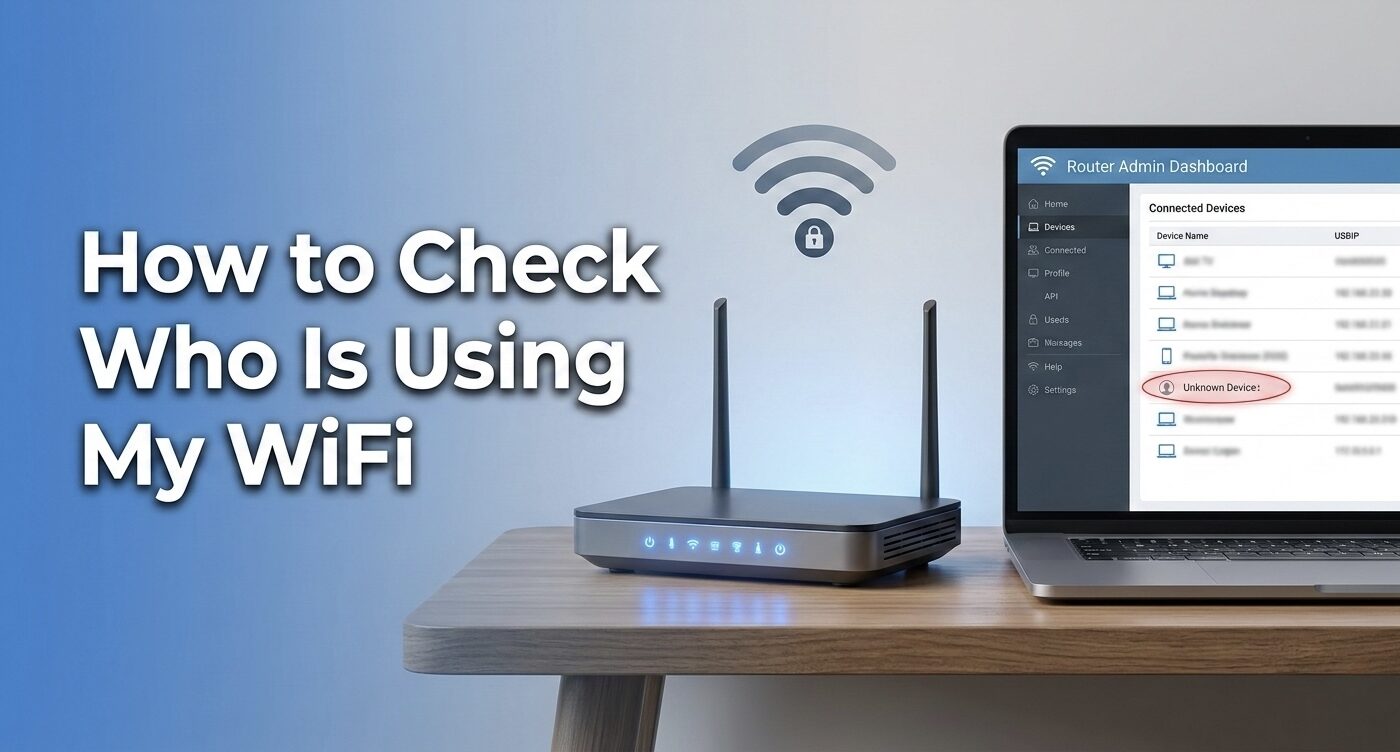
Step 3: Find Connected Devices Section
After login, look for:
- Connected Devices
- Device List
- DHCP Clients List
- Attached Devices
- Wireless Clients
Every router has a slightly different interface.
Step 4: Identify Unknown Devices
You will see:
- Device name
- IP address
- MAC address
- Connection time
If you see devices you do not recognize, someone may be using your WiFi.
Method 2: Check Connected Devices Using Command Prompt (Windows Only)
This method works without router login but shows limited information.
Steps:
- Press Windows + R
- Type cmd and press Enter
- Type:
arp -a
- Press Enter
You will see a list of connected IP addresses. Compare them with your own devices.
This method helps identify unknown connections but cannot block users.
Method 3: Check Connected Devices Using Router Mobile Browser
If you cannot access a computer, you can use your phone browser.
Steps:
- Connect your phone to WiFi
- Open Chrome browser
- Enter router IP address
- Login to router dashboard
- Check device list
No app required.
How to Identify Unknown Devices on Your Network
Sometimes device names are confusing. Here is how to identify them.
Check Device Name
Look for names like:
- Android device
- iPhone
- Smart TV
- Laptop brand
- Unknown device
Check MAC Address
Every device has unique MAC address. Match with your own devices.
Disconnect Devices One by One
Turn off your devices and see which one disappears from list.
This helps identify unknown connections easily.
How to Block Someone From Using Your WiFi
If you find unauthorized devices, remove them immediately.
Method 1: Block Using MAC Address
- Login to router
- Go to Access Control or MAC Filtering
- Add unknown device MAC address
- Block the device
The device will never reconnect.
Method 2: Change WiFi Password (Recommended)
- Login to router
- Go to Wireless Settings
- Change WiFi password
- Reconnect your devices only
This is the fastest solution.
How to Secure Your WiFi Network (Important)
Checking devices is not enough. You must secure your network.
Use Strong Password
Avoid simple passwords like:
- 12345678
- password
- wifi123
Use mix of letters, numbers, symbols.
Enable WPA3 or WPA2 Encryption
Never use open networks.
Hide Your WiFi Name (SSID)
Prevents random users from finding your network.
Disable WPS Feature
WPS can allow easy unauthorized access.
Update Router Firmware
Updates fix security vulnerabilities.
Common Mistakes People Make
Avoid these mistakes:
- Never changing default router password
- Sharing WiFi password publicly
- Ignoring unknown devices
- Using open WiFi network
- Not updating router firmware
These mistakes can lead to hacking or data theft.
Benefits of Monitoring WiFi Regularly
- Faster internet speed
- Better security
- Stable connection
- Lower data usage
- Protection from hackers
Checking your network once a month is recommended.
Frequently Asked Questions (FAQs)
Can someone use my WiFi without password?
Yes, if your network security is weak or WPS is enabled.
How often should I check connected devices?
At least once every month.
Is it safe to share WiFi password?
Only with trusted users.
Can I see browsing history of connected users?
No, routers normally do not show browsing history.
What happens if too many devices connect to WiFi?
Internet speed becomes slow and connection becomes unstable.
How to Check Connected Devices on Popular Routers (TP-Link, PTCL, Huawei)
Different router brands have slightly different settings panels, but the process of checking connected devices is mostly similar. Here is how you can check connected devices on common routers used in homes.
Check Devices on TP-Link Router
1. Open your browser and type 192.168.0.1 or 192.168.1.1 2. Login using your router username and password 3. Go to Wireless Settings or DHCP Client List 4. View all connected devices and their details
TP-Link routers usually show device name, IP address, and MAC address clearly.
Check Devices on PTCL Router
1. Open browser and enter 192.168.10.1 2. Login to router dashboard 3. Go to Device Information or Connected Devices 4. Identify unknown users
PTCL routers are commonly used in Pakistan and allow easy monitoring of connected devices.
Check Devices on Huawei Router
1. Enter 192.168.100.1 in browser 2. Login to admin panel 3. Open WLAN or User Device Information 4. Check active connections
Huawei routers also allow you to disconnect devices directly from dashboard.
Even if your router brand is different, the settings names are usually similar.
What to Do If Router Login Is Not Working
Sometimes users cannot access router settings. This can happen due to incorrect login details or network issues.
Check Router Label
Most routers have login username and password printed on the back.
Restart Your Router
Turn off router for 30 seconds and restart it.
Clear Browser Cache
Old browser data can prevent router page from loading properly.
Reset Router (Last Option)
Press and hold router reset button for 10–15 seconds. This restores default settings. After reset, you must reconnect all devices.
WiFi Troubleshooting Table
| Problem | Possible Cause | Solution |
|---|---|---|
| Slow internet speed | Too many connected devices | Check and remove unknown users |
| Router login not opening | Wrong IP address | Check router label and retry |
| Unknown device keeps reconnecting | Weak password | Change WiFi password immediately |
| Frequent disconnections | Network overload | Limit connected devices |
Extra Security Tips to Protect Your WiFi
Apart from checking connected devices, you should apply additional security measures to prevent future unauthorized access.
- Change WiFi password every 3 to 6 months
- Turn off remote router access
- Enable firewall settings in router
- Use guest network for visitors
- Limit number of connected devices
- Monitor network activity regularly
Following these security practices helps maintain a stable and protected internet connection.
When Should You Check Your WiFi Network
Many users check their network only when internet becomes slow, but regular monitoring is recommended.
You should check your WiFi network:
- When internet speed suddenly drops
- When new unknown devices appear
- After sharing WiFi password with others
- After installing new router
- Once every month for security check
Regular monitoring prevents data theft and unauthorized access.
Additional FAQs
Can I disconnect a device from WiFi remotely?
Yes, most modern routers allow you to block or disconnect devices from the router dashboard.
Can someone hack my WiFi easily?
If your password is weak or security settings are outdated, unauthorized access becomes easier.
Does hiding WiFi name make network secure?
It improves security but should be combined with strong password and encryption.
What is the safest WiFi security type?
WPA3 is currently the most secure WiFi encryption standard.
Conclusion
Checking who is connected to your WiFi without using any app is simple and essential for maintaining internet speed and security. Your router already provides built-in tools to monitor devices, block unauthorized users, and secure your network.
By regularly checking your connected devices, changing your password, and applying security settings, you can protect your WiFi from unauthorized access and enjoy faster internet performance.