
If you want to compress photos on Android, you have come to the right place. Large photo files cause problems every day for mobile users in Pakistan — they fill up your storage quickly, take too long to send on WhatsApp, get rejected by online forms with file size limits, and waste your mobile data when uploading. The good news is that you can compress photos on Android phone in seconds using free built-in tools and apps — without any loss in visible quality.
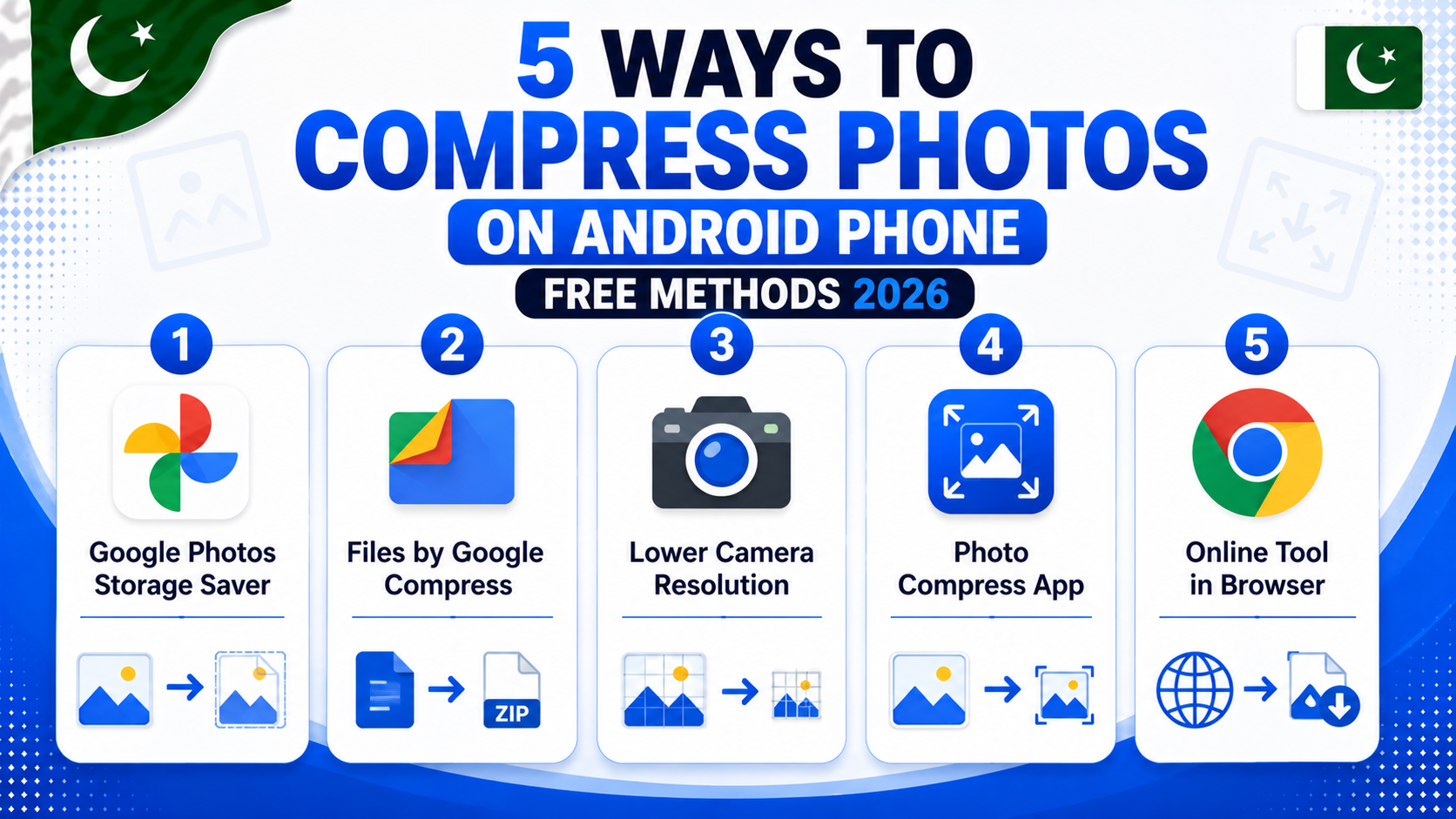
In this complete guide, you will learn exactly how to compress photos on Android phone in 2026 using 5 proven methods that work on all Android phones in Pakistan.
- Why You Need to Compress Photos on Android
- Method 1 — Compress Photos on Android Using Google Photos
- Method 2 — Compress Photos on Android Using Files by Google
- Method 3 — Reduce Photo Size Using Camera Settings
- Method 4 — Compress Photos on Android Using Photo Compress App
- Method 5 — Compress Photos Online Using Chrome Browser
- How to Send Compressed Photos on WhatsApp
- Tips for Managing Photos on Android
- Frequently Asked Questions
Why You Need to Compress Photos on Android
Modern Android phones take very high resolution photos — sometimes 48MP, 64MP, or even 108MP. These photos look amazing but their file sizes are massive.
A single photo from a 48MP camera can be 8MB to 15MB in size. Here is why that causes real problems:
- WhatsApp size limit — WhatsApp compresses photos automatically but reduces quality badly. Sending as Document keeps quality but the file must be under 100MB.
- Online form file limits — Government portals, job applications, and university forms in Pakistan often have a 1MB or 2MB file size limit for photo uploads.
- Email attachment limits — Gmail allows maximum 25MB per email. Large photos fill this limit quickly when sending multiple files.
- Storage fills up fast — Hundreds of large photos eat up your phone storage within weeks.
- Slow upload speed — Large photos take longer to upload and use more mobile data.
Compressing photos on Android solves all these problems while keeping photos looking sharp and clear.
Method 1 — Compress Photos on Android Using Google Photos
Google Photos has a built-in storage saver feature that automatically compresses photos on Android while keeping them looking visually identical. This is the easiest method with zero manual work.
Steps to compress photos using Google Photos:
- Open Google Photos on your phone
- Tap your Profile icon → tap Photos Settings
- Tap Backup
- Under Backup Quality — select “Storage Saver”
- Tap Confirm
Storage Saver compresses photos to a maximum of 16MP resolution — which is more than enough for WhatsApp, social media, and most online forms. The compression is done by Google’s servers and the quality difference is almost impossible to see on a phone screen.
Free up device space after backup:
- Open Google Photos
- Tap Profile icon → Free up space
- Tap Free up to delete already-backed-up photos from your phone
This method compresses photos on Android AND saves your phone storage at the same time — making it the most efficient option for most Pakistani users.
Method 2 — Compress Photos on Android Using Files by Google
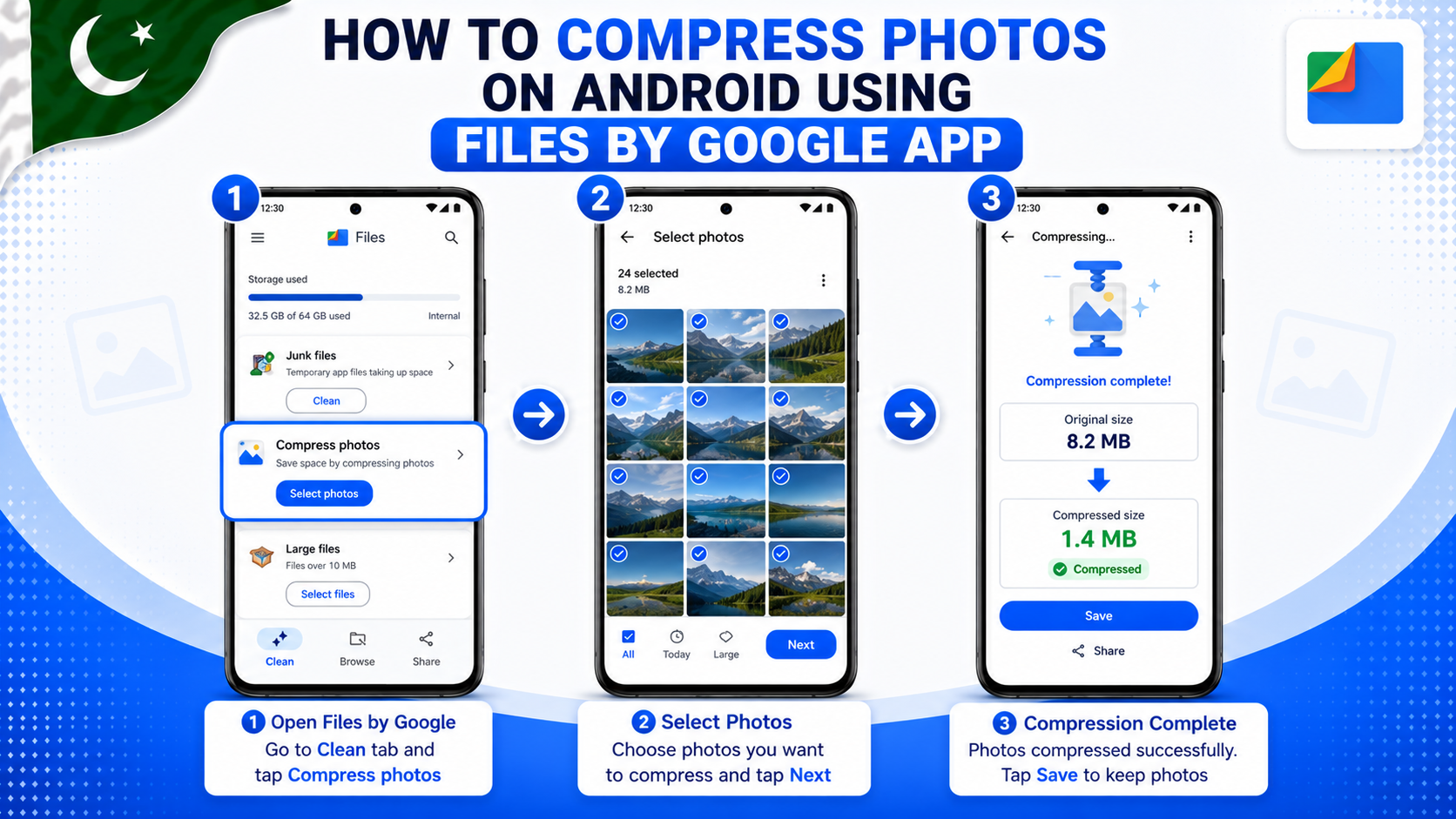
Files by Google is a free app from Google that includes a built-in photo compression tool. It lets you compress photos on Android directly on your phone — no internet required after the app is installed.
Steps to compress photos using Files by Google:
- Download Files by Google from Play Store if not installed
- Open the app
- Tap Clean tab at the bottom
- Scroll to find “Compress photos” section
- Tap Select photos
- Select the photos you want to compress
- Tap Compress
- Compressed copies will be saved in a new folder
Files by Google keeps the original photos safe and creates compressed copies separately. This gives you the flexibility to use compressed versions for sending while keeping originals stored safely.
Method 3 — Reduce Photo Size Using Camera Settings on Android
The best way to compress photos on Android before taking them is to reduce your camera resolution in settings. This means photos are smaller from the moment they are taken — saving storage and making them ready to send without any extra compression step.
Steps to reduce camera resolution on Android:
- Open your Camera app
- Tap the Settings gear icon
- Find Picture Size or Resolution setting
- Change from highest resolution (e.g. 64MP) to a lower setting (e.g. 12MP or 8MP)
- Take photos normally — they will be smaller automatically
For most everyday uses — WhatsApp, social media, online forms — 8MP or 12MP is more than enough quality. A 12MP photo is around 2MB to 4MB which is perfect for sharing without any compression needed.
This is especially useful for budget phones in Pakistan with 32GB storage. Taking photos at lower resolution means your storage lasts 3 to 4 times longer before filling up.
Method 4 — Compress Photos on Android Using Photo Compress App
If you need more precise control over compression — like setting an exact file size or quality percentage — a dedicated photo compress app gives you the best results.
Best free photo compress apps for Android:
- Photo Compress 2.0 — Set exact quality percentage, compress single or multiple photos at once
- Compress Image — Set target file size in KB, perfect for online forms with specific limits
- Image Size — Resize and compress photos to exact pixel dimensions and file size
General steps for most photo compress apps:
- Download your preferred app from Play Store
- Open the app and tap Select Image
- Choose the photo you want to compress
- Set the compression quality (70% to 80% is ideal for most uses)
- Tap Compress
- Save the compressed photo to your phone
Setting compression to 70% to 80% quality gives you the best balance — the photo size reduces by 60% to 70% while the visual quality remains sharp enough for any practical use.
Method 5 — Compress Photos Online Using Chrome Browser on Android
If you do not want to install any app, you can compress photos on Android directly in your Chrome browser using free online tools. No installation needed — just open the website and compress.
Best free online photo compressors:
- squoosh.app — Made by Google, works in browser, excellent compression with live preview
- tinypng.com — Compresses PNG and JPG files up to 80% smaller automatically
- compressjpeg.com — Simple upload and compress in one click
Steps to compress photos online on Android:
- Open Chrome browser on your phone
- Go to squoosh.app or tinypng.com
- Upload your photo from phone storage
- Adjust compression settings if needed
- Download the compressed photo to your phone
Squoosh.app is especially recommended — it shows you a side-by-side comparison of original vs compressed quality before you download. This way you can see exactly how much quality you are trading for smaller file size.
How to Send Compressed Photos on WhatsApp
WhatsApp has its own way to handle photo quality that many people in Pakistan do not know about. When you send a photo normally on WhatsApp, it automatically compresses it — which reduces quality. Here is how to control this.
Send high quality compressed photos on WhatsApp:
- Open WhatsApp chat
- Tap attach (📎) → tap Document instead of Gallery
- Select your compressed photo file
- Send it as a document
Sending as Document preserves the exact quality of your photo without WhatsApp compressing it further. The receiver gets the exact file you send — perfect for professional photo sharing.
Change WhatsApp upload quality setting:
- Open WhatsApp → Settings → Storage and Data
- Tap Media Upload Quality
- Select Best Quality or Data Saver based on your preference
Tips for Managing Photos on Android in Pakistan
- Compress before uploading to online forms — Most Pakistani government portals like NADRA, HEC, and job sites have a 1MB photo limit. Always compress photos on Android to under 200KB before uploading to avoid rejection errors.
- Keep originals backed up — Always keep original high resolution photos backed up on Google Photos before compressing. Read our guide on how to free up storage space on Android for complete photo management tips.
- Use PDF for multiple photos — If you need to send multiple photos together, combine them into one PDF file. Read our guide on how to make PDF on Android phone to learn how to combine photos into one document easily.
- Compress photos before sending on mobile data — Large photos use more data to upload. Compressing before sending saves significant MBs especially when sharing multiple photos.
- Set camera to lower resolution by default — If you rarely need maximum resolution photos, keep your camera at 12MP permanently. This saves storage and eliminates the need to compress photos on Android before every share.
Frequently Asked Questions
Does compressing photos on Android reduce visible quality?
At 70% to 80% compression quality, the difference is almost invisible on a phone screen or when printed at normal sizes. You only notice quality loss below 50% compression. For WhatsApp, social media, and online forms, compressed photos at 70% look identical to the originals.
How do I compress photos on Android to under 1MB?
Use a dedicated photo compress app like “Compress Image” from Play Store which lets you set an exact target file size in KB. Set the target to 900KB and the app will automatically find the right compression level to achieve that size.
Can I compress multiple photos at once on Android?
Yes. Files by Google and Photo Compress 2.0 both support batch compression — select multiple photos and compress them all at once. This is much faster than compressing photos one by one.
Does compressing photos on Android change the dimensions?
Photo compression and photo resizing are two different things. Compression reduces file size while keeping the same pixel dimensions. Resizing reduces the actual pixel dimensions which also reduces file size. For most cases, compression alone is enough without resizing.
Which is the best free app to compress photos on Android in Pakistan?
Files by Google is the best choice because it is made by Google, completely free, has no ads, and works offline. For more precise control over file size, Compress Image app from Play Store is the best option.
Why does WhatsApp compress my photos automatically?
WhatsApp compresses photos to reduce data usage and speed up delivery. This compression happens automatically and reduces quality. To avoid this, send photos as Documents instead of through the Gallery — this preserves original quality while bypassing WhatsApp’s automatic compression.
Final Words
Now you know exactly how to compress photos on Android phone in 2026 using 5 different free methods. For most Pakistani users, Files by Google is the easiest starting point — it is already on your phone and works with one tap. For precise file size control, use a dedicated compress app from Play Store.
Compressing photos on Android before sending saves your mobile data, clears storage space, and makes sure your files are accepted by every online portal and form in Pakistan.
For more useful Android tips keep visiting Buzmis — simple tech solutions for everyone in Pakistan.
For the best browser-based photo compression visit Squoosh by Google — free, fast, and works directly in Chrome on your Android phone.