
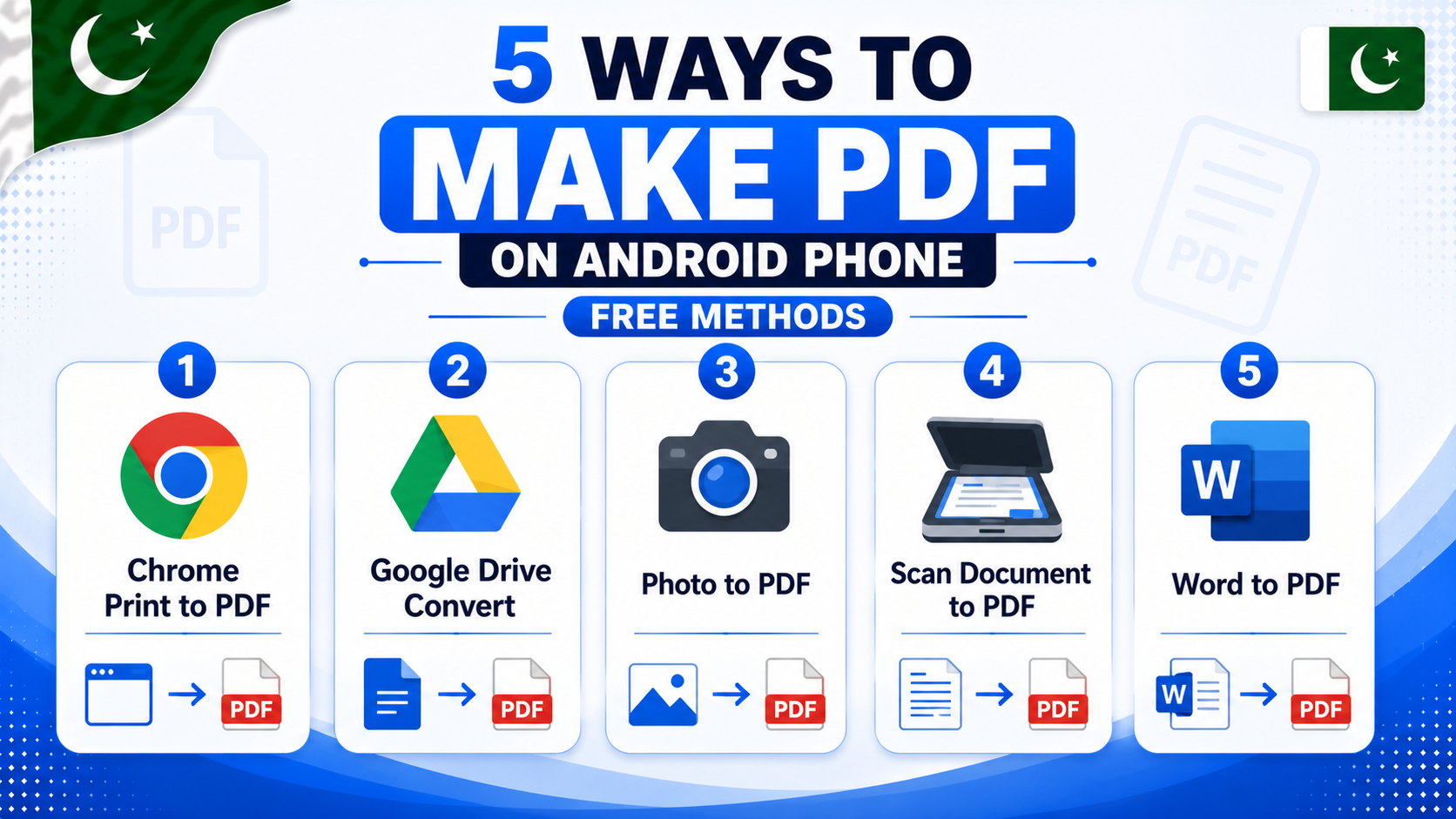
If you want to make PDF on Android phone, you have come to the right place. In the past, creating PDF files required a computer and special software, but today you can make PDF on Android phone in just a few seconds without installing any extra app. Whether you want to convert a photo into a PDF for a job application, save a web page as a PDF, or scan an important document, your Android phone can do it all for free.
The good thing is that most Android phones already include the tools you need to create PDF files. In this complete guide, you will learn 5 simple ways to make PDF on Android phone, and every method works on almost any Android phone in Pakistan without spending any money.
- Method 1 — Make PDF on Android Phone Using Chrome Browser
- Method 2 — Make PDF on Android Phone Using Google Drive
- Method 3 — Convert Photo to PDF on Android
- Method 4 — Scan Document to PDF Using Google Drive
- Method 5 — Make PDF on Android Using Microsoft Word
- How to Share PDF from Android Phone
- Tips for Managing PDF Files on Android
- Frequently Asked Questions
Method 1 — Make PDF on Android Phone Using Chrome Browser
This is one of the easiest ways to make PDF on Android phone, and you do not need to install any extra app. The Chrome browser already includes a built-in Print to PDF feature that lets you convert any web page into a PDF file within seconds.
Steps to make PDF on Android using Chrome:
- Open Chrome browser on your phone
- Go to the web page you want to save as PDF
- Tap the three dots (⋮) in the top right corner
- Tap Share → then tap Print
- At the top, tap the printer dropdown and select “Save as PDF”
- Tap the PDF button (download icon) in the top right
- Choose where to save it and tap Save
Your PDF is now saved to your phone. This method is perfect for saving articles, receipts, online forms, and any web content as a PDF file directly on your Android phone.
Method 2 — Make PDF on Android Phone Using Google Drive
Google Drive is another easy way to make PDF on Android phone — especially for converting existing documents and files into PDF format. Almost every Android phone in Pakistan already has Google Drive installed.
Steps to make PDF using Google Drive:
- Open Google Drive app on your phone
- Tap the + (Plus) button at the bottom right
- Tap Upload and select your document or image file
- Once uploaded, tap on the file to open it
- Tap the three dots (⋮) → tap Print
- Select “Save as PDF” from the printer dropdown
- Tap the download icon to save the PDF to your phone
Google Drive supports converting Word documents, Excel sheets, images, and text files into PDF. This makes it one of the most versatile ways to make PDF on Android phone without any paid app.
Method 3 — Convert Photo to PDF on Android Phone
Need to make PDF on Android phone from your photos? This is very common in Pakistan — for job applications, CNIC copies, university forms, and bank documents. Here are two quick ways to do it.
Method 3A — Using Google Photos:
- Open Google Photos on your phone
- Select the photo you want to convert
- Tap the three dots (⋮) → tap Print
- Select “Save as PDF”
- Tap the download icon to save
Method 3B — Using Samsung Gallery (Samsung phones only):
- Open Gallery app on your Samsung phone
- Open the photo you want to convert
- Tap the three dots (⋮) → tap Print
- Select “Save as PDF” from printer options
- Save the PDF to your phone storage
Both methods work completely offline — no internet needed to convert a photo to PDF on Android phone. The converted PDF will have the same quality as the original photo.
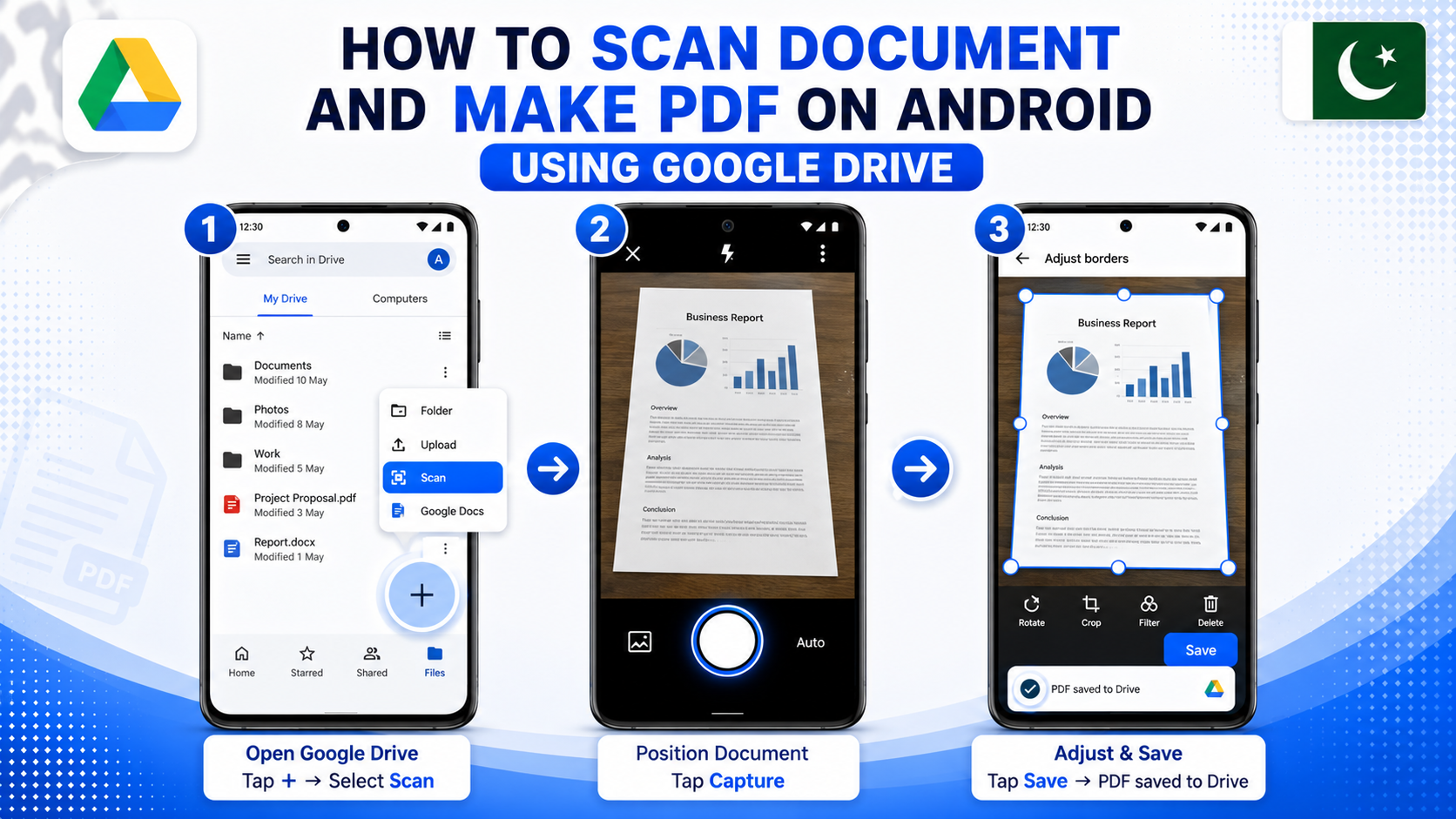
Method 4 — Scan Document to PDF on Android Using Google Drive
Google Drive also has a built-in document scanner that lets you scan physical papers and save them as PDF directly on your Android phone. This is perfect for scanning CNIC, salary slips, contracts, and school certificates.
Steps to scan and make PDF on Android phone:
- Open Google Drive app
- Tap the + (Plus) button
- Tap Scan (camera icon)
- Point your camera at the document
- Tap the capture button to take the photo
- Adjust crop if needed → tap Done
- Add more pages if needed → tap Save
- The scanned document is automatically saved as PDF in Google Drive
Google Drive scanner automatically enhances the document — adjusting brightness and contrast so the text is sharp and readable. It even works in low light conditions.
Method 5 — Make PDF on Android Phone Using Microsoft Word
If you have a Word document (.docx) on your phone and want to make PDF on Android phone from it, Microsoft Word app makes this very simple. The Word app is free to download and works on all Android phones.
Steps to convert Word document to PDF on Android:
- Download Microsoft Word from Play Store if not installed
- Open your .docx file in Word
- Tap the three dots (⋮) or File menu
- Tap Export or Save as PDF
- Choose save location and tap Save
Microsoft Word is especially useful for students and professionals in Pakistan who receive assignment files, CV templates, or official documents in .docx format and need to submit them as PDF.
How to Share PDF from Android Phone
Once you make PDF on Android phone, sharing it is very easy. Here are the most common ways to share a PDF in Pakistan:
- WhatsApp — Open WhatsApp chat → tap attach (📎) → tap Document → select your PDF → send
- Email — Open Gmail → Compose → tap attach → select PDF from storage → send
- Google Drive — Upload PDF to Drive → tap Share → enter email or copy shareable link
- Bluetooth — For sharing with nearby devices without internet — tap Share → Bluetooth → select device
WhatsApp is the most popular way to share PDF files in Pakistan. Documents sent via WhatsApp maintain their original quality and can be downloaded by the receiver with one tap.
Tips for Managing PDF Files on Android Phone
- Find your PDFs easily — All saved PDFs go to Internal Storage → Downloads folder. Open File Manager and check the Downloads folder to find all your PDF files.
- Open PDF files on Android — Android can open PDF files natively in Chrome browser. Just tap the PDF file in File Manager and it opens automatically. No extra app needed.
- Keep storage free for PDF making — PDF files can take significant space especially scanned documents with multiple pages. Read our guide on how to free up storage space on Android phone to always have enough space.
- Use WiFi for uploading large PDFs — Uploading large PDF files to email or Google Drive uses significant mobile data. Read our guide on how to reduce mobile data usage on Android to save your MBs.
- Rename PDFs properly — Always rename your PDF files before sending. Instead of “scan001.pdf” use something like “CNIC-NajiKhan.pdf” — this looks professional and makes it easy for the receiver to identify.
Frequently Asked Questions
Can I make PDF on Android phone without any app?
Yes. Chrome browser and Google Drive are both pre-installed on most Android phones in Pakistan and both can make PDF files without downloading anything extra. Use Chrome to save web pages as PDF and Google Drive to convert and scan documents to PDF.
How do I make PDF on Android phone from multiple photos?
Use the Google Drive scanner — it lets you add multiple pages in one scan session. Or use a free app like Adobe Scan from Play Store which lets you combine multiple photos into one single PDF file easily.
Is the quality of PDF good when made on Android phone?
Yes. PDFs made using the Chrome print method and Google Drive scanner maintain excellent quality. For photos converted to PDF, the quality matches the original photo resolution. Always keep your camera steady when scanning documents for the sharpest results.
Can I edit a PDF on Android phone?
Basic PDF editing — like adding text, highlighting, or signing — is possible on Android using free apps like Adobe Acrobat Reader or Xodo PDF. For major editing like changing text or layout, you need to edit the original document first and then convert to PDF again.
How do I password protect a PDF on Android phone?
Free apps like PDF Utility or Smallpdf (via browser) allow you to add password protection to PDF files on Android. This is useful when sharing sensitive documents like salary certificates or bank statements via WhatsApp or email.
Where are PDF files saved on Android phone?
PDFs saved using the Chrome or Google Drive method go to Internal Storage → Downloads folder. PDFs scanned with Google Drive are saved in Google Drive cloud storage. Open your File Manager app and check the Downloads folder to find locally saved PDFs.
Final Words
Now you know how to make PDF on Android phone using 5 simple and free methods. For most people, the Chrome browser method is the fastest option, while Google Drive Scanner is the best choice for scanning paper documents into PDF files.
There is no need to visit a shop or use a computer anymore. Your Android phone already has everything you need to make PDF on Android phone and share your PDF files instantly through WhatsApp or email.
For more useful Android tips keep visiting Buzmis — simple tech solutions for everyone in Pakistan.
For official help on saving web pages as PDF visit the Google Chrome official print and save guide.