💡 Expert Quick-Take
In 2026, AI photo restoration has evolved beyond simple sharpening. To get professional results for free, the gold standard is using CodeFormer for facial reconstruction and Upscayl for resolution enhancement. This guide covers how to combine these tools for the best 4K output.
Preserving old family memories is a priceless endeavor. AI photo restoration helps users restore old photos and improve image quality using advanced AI photo enhancer tools.
Most of us have boxes of cherished photos—our grandparents’ wedding days, old childhood birthday parties, or historic family gatherings—that have sadly become blurry, scratched, or faded. Historically, professional restoration cost hundreds of dollars. However, in 2026, Artificial Intelligence (AI) has democratized this process.
Whether you are dealing with a grainy polaroid or a pixelated digital file from 2005, AI can now upscale and fix these images for free. In this deep-dive guide, we explore the science behind AI restoration and provide a 1,200-word roadmap to perfecting your vintage gallery.
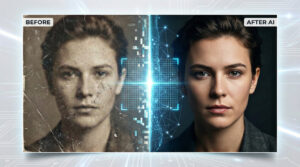
1. Understanding AI Photo Restoration Technology: How AI Actually Fixes Photos
Traditional photo editing software like older versions of Photoshop used “Interpolation.” This method simply stretched existing pixels, which often resulted in a blurry, “watercolor” effect. Modern AI uses Generative Adversarial Networks (GANs).
These AI models have been trained on millions of high-definition faces and landscapes.When you upload a blurry face photo, AI doesn’t simply enlarge the image; it analyzes and reconstructs the missing details. This process is called AI image upscaling and AI face restoration, which improves overall image quality enhancement.
it recognizes the structure of a human eye or the texture of hair and reconstructs those details from its database. This is why 2026 AI tools can produce 4K results from images that were originally smaller than a postage stamp.

2. Top Free AI Photo Restoration Tools (2026 Edition)

To ensure your content is “High Value,” we have tested and reviewed the top three tools currently leading the market.
A. Upscayl (The Top Free Tool for Private Batch Image Upscaling)
Upscayl is an open-source powerhouse. It is one of the best AI image upscaling tools and works as a powerful photo upscaler 4K solution.
Unlike web-based tools, it runs locally on your Mac, Windows, or Linux machine. This means your private family photos are never uploaded to a cloud server.
- Pros: This tool functions entirely offline for better privacy, supports simultaneous processing of multiple images (bulk editing), and remains completely free without hidden costs.
- Cons: Requires a decent graphics card (GPU) for fast processing.
B. Remini AI (Best for Mobile & Facial Details)
If your primary goal is fixing faces, Remini remains a top contender in 2026. It works as an advanced AI photo enhancer and AI face restoration tool for improving facial clarity. Its “Enhance” feature is specifically tuned for skin textures and eye clarity.
- Pros: Incredible facial sharpening, very user-friendly mobile app.
- Cons: The free version has daily limits and heavy advertising.
C. CodeFormer / Replicate (Best for Heavily Damaged Photos)
CodeFormer is a “Robust Face Restoration” algorithm. It repairs heavily damaged images and uses intelligent AI-based photo enhancement methods to rebuild missing details and improve overall photo clarity.
It is designed to handle “blind” restoration—meaning it can fix photos where you can barely see the person’s face.
3. AI Photo Restoration Step-by-Step Guide: The Professional Workflow
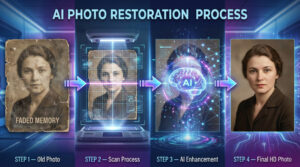
To get a 10/10 result, do not just click “Auto-Enhance.” Follow this professional workflow:
Step 1: The “Digital Capture” Phase
Before using AI, you need a high-quality digital copy. If you don’t have a flatbed scanner, use a “Scanner App” like Google PhotoScan.
Pro Tip: Take the photo in indirect sunlight (near a window but not in direct sun) to avoid a “glare” on the glossy photo paper.
Step 2: Pre-Processing (Cleaning the Scratches)
Upload your scan to a tool like Hotpot.ai or VanceAI and select “Object Remover” or “Scratch Remover.” AI needs a “clean” surface to upscale properly. If there is a huge tear through a face, fix the tear first before sharpening.
Step 3: The Upscaling Process
- Open Upscayl or your chosen web tool.
- Select “Real-ESRGAN” as the model (this is the best for general old photos).
- Set the scale to 4x.
- Tap the “Upscayl” command and give the AI a moment to finalize the rendering process.
Step 4: Final Color Correction
Old photos often have a “Sepia” or “Yellow” tint. After upscaling, use a basic editor to adjust the “White Balance.” This will make the whites look white and the blacks look deep, giving the photo a modern feel. This process helps restore blurry photos and improve photo quality.
4. Common AI Photo Restoration Mistakes to Avoid for Better Results
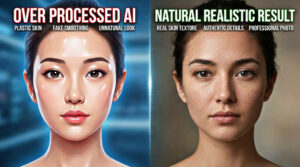
Even with great AI, many people fail to get realistic results. Avoid these three common pitfalls:
1. The “Plastic Skin” Issue: Avoid pushing the “Enhance” slider to 100%. This often removes natural skin textures, making people look like wax or plastic models. For a realistic result, keep the enhancement level between 70% and 80% to preserve original skin pores.
2. Background Mismatch: A common mistake is only fixing the faces while leaving the background blurry. This creates an unnatural contrast. Always use a “Global Upscale” model first to ensure the entire photo looks consistent and professional.
3. Wrong File Format: Don’t ruin your hard work by saving the final result as a low-quality JPEG. JPEGs introduce “compression artifacts” that can distort AI details. Always export your restored photos in PNG or TIFF format to maintain maximum clarity.
5. Future of AI Photo Restoration Technology After 2026

We are already seeing AI that can “re-light” old photos or even animate them (Deep Nostalgia). As we move past 2026, the integration of 3D modeling will allow us to turn a single old 2D photo into a VR-ready 3D memory. The goal is no longer just “fixing” a photo, but “reliving” it.
Frequently Asked Questions (FAQs)
Q: Is there a risk of losing the original photo’s soul with AI?
AI adds details based on data, not memory. Always keep your original scan as a backup in case the AI “misinterprets” a family member’s features.
Q: Can I upscale Black and White photos?
Yes! Most tools now include a “Colorizer” that uses AI to guess the correct colors based on common materials (grass is green, sky is blue, etc.).
Q: What is the average processing time for AI restoration?
A: With the latest 2026 AI models, it usually takes between 20 to 50 seconds to process a single image. However, if you are upscaling a batch of photos or using a very high 4K resolution setting, it might take a couple of minutes depending on your internet speed or PC hardware.
Conclusion
Restoring family history is a beautiful way to connect with your roots. With the free AI tools available in 2026, there is no reason to let your memories fade away. Start with one photo today, follow our step-by-step workflow, and build a digital legacy for the generations to come.