
If you want to recover deleted WhatsApp messages, you have come to the right place. Accidentally deleting an important WhatsApp conversation is one of the most frustrating experiences for mobile users in Pakistan. Whether it was an important business chat, a family conversation, or precious photos someone sent you — losing WhatsApp messages feels terrible. The good news is that WhatsApp has a solid backup system built in, and in most cases you can recover deleted WhatsApp messages completely without spending any money.
In this complete guide, you will learn exactly how to recover deleted WhatsApp messages in 2026 using 4 proven methods — from Google Drive restore to local backup recovery — explained step by step in simple language.
- How WhatsApp Backup System Works
- Method 1 — Recover Deleted WhatsApp Messages from Google Drive
- Method 2 — Recover Deleted WhatsApp Messages from Local Backup
- Method 3 — Check WhatsApp Chat Export
- Method 4 — Check Android Notification History
- How to Set Up WhatsApp Backup Properly
- Important Tips Before You Try Recovery
- Frequently Asked Questions
How WhatsApp Backup System Works
Before you try to recover deleted WhatsApp messages, it helps to understand how WhatsApp saves your chats. This tells you exactly which recovery method will work for your situation.
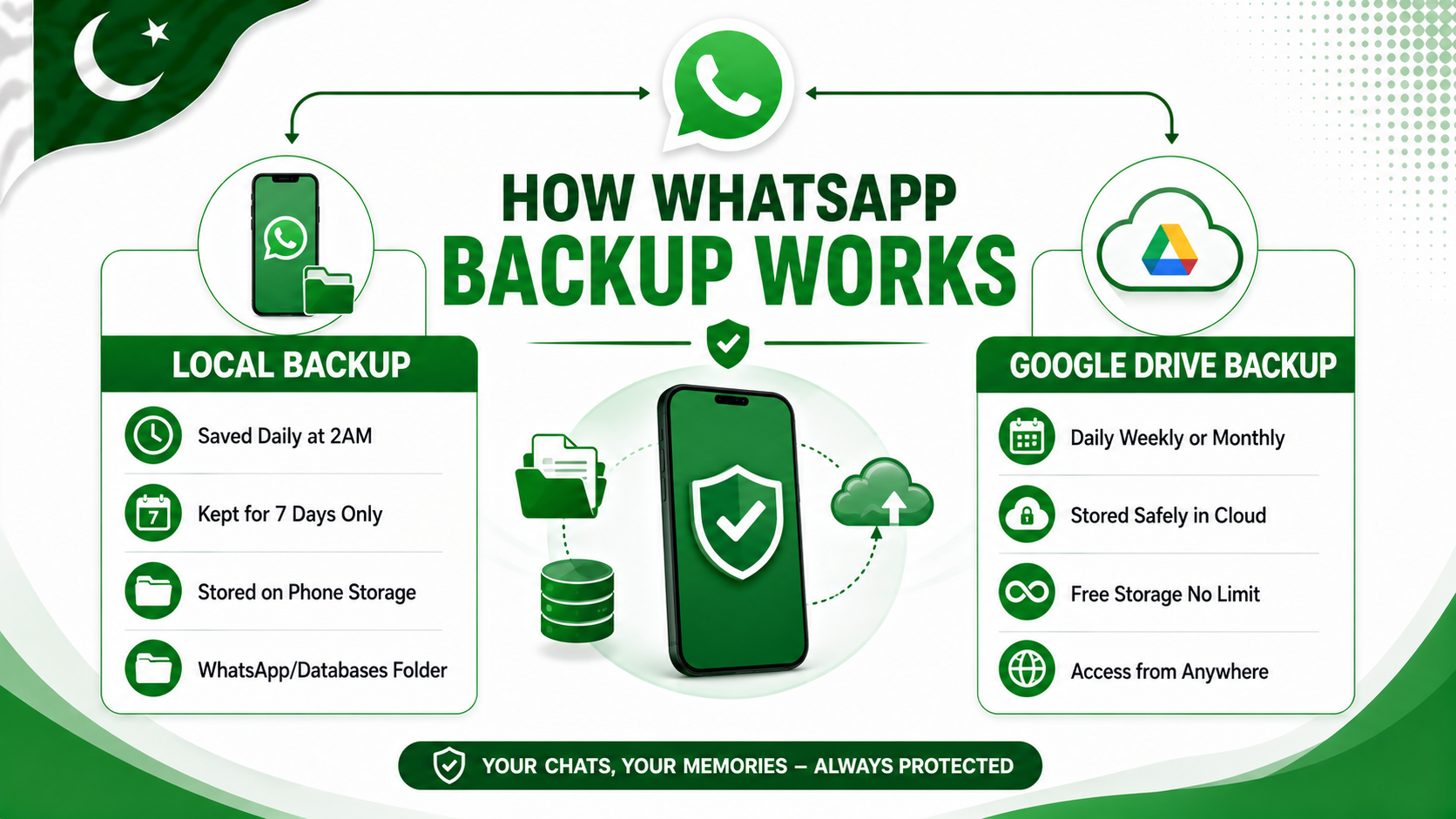
WhatsApp saves your messages in two ways:
- Local backup — WhatsApp automatically creates a backup file on your phone’s internal storage every day at 2 AM. These local backups are stored for the last 7 days. You can find them at: Internal Storage → WhatsApp → Databases folder.
- Google Drive backup — If you have set up Google Drive backup in WhatsApp settings, your chats are also saved to your Google account in the cloud. This backup runs daily, weekly, or monthly depending on your settings.
Most important rule: As soon as you realize that your WhatsApp messages have been deleted, stop using WhatsApp immediately. The reason is that every time you open WhatsApp, it may create a new local backup that can overwrite the older backup containing your deleted messages. The good thing is that the faster you take action, the higher your chances of recovering your deleted WhatsApp messages successfully.
Method 1 — Recover Deleted WhatsApp Messages from Google Drive
This is the most reliable method to recover deleted WhatsApp messages. Google Drive stores your full chat history including photos, videos, and documents — so a complete restore is possible if backup was enabled.
Step 1 — Check if Google Drive backup exists:
- Open WhatsApp on your phone
- Tap three dots (⋮) → Settings
- Tap Chats → Chat Backup
- Check the date and size of your last Google Drive backup
- If the backup date is before the messages were deleted — you can restore it
Step 2 — Restore WhatsApp from Google Drive:
- Uninstall WhatsApp completely from your phone
- Go to Google Play Store and reinstall WhatsApp
- Open WhatsApp and verify your phone number
- After verification WhatsApp will automatically detect your Google Drive backup
- Tap Restore when prompted
- Wait for the restore to complete — may take a few minutes
- Tap Next — all your backed up chats will appear
Important: Restoring your WhatsApp chats from Google Drive will replace your current chats with the backup version. This means that any messages you received after the backup was created will no longer be available.
The good thing is that if you are okay with losing those newer messages, you can continue with the restore process without any problem. So before moving to the next step, make sure you are completely comfortable with this.
Method 2 — Recover Deleted WhatsApp Messages from Local Backup
If you do not have Google Drive backup, or if your Google Drive backup is too old, you can try to recover deleted WhatsApp messages from the local backup stored directly on your phone. WhatsApp keeps daily local backups for 7 days — so if the deletion happened recently this method can work very well.
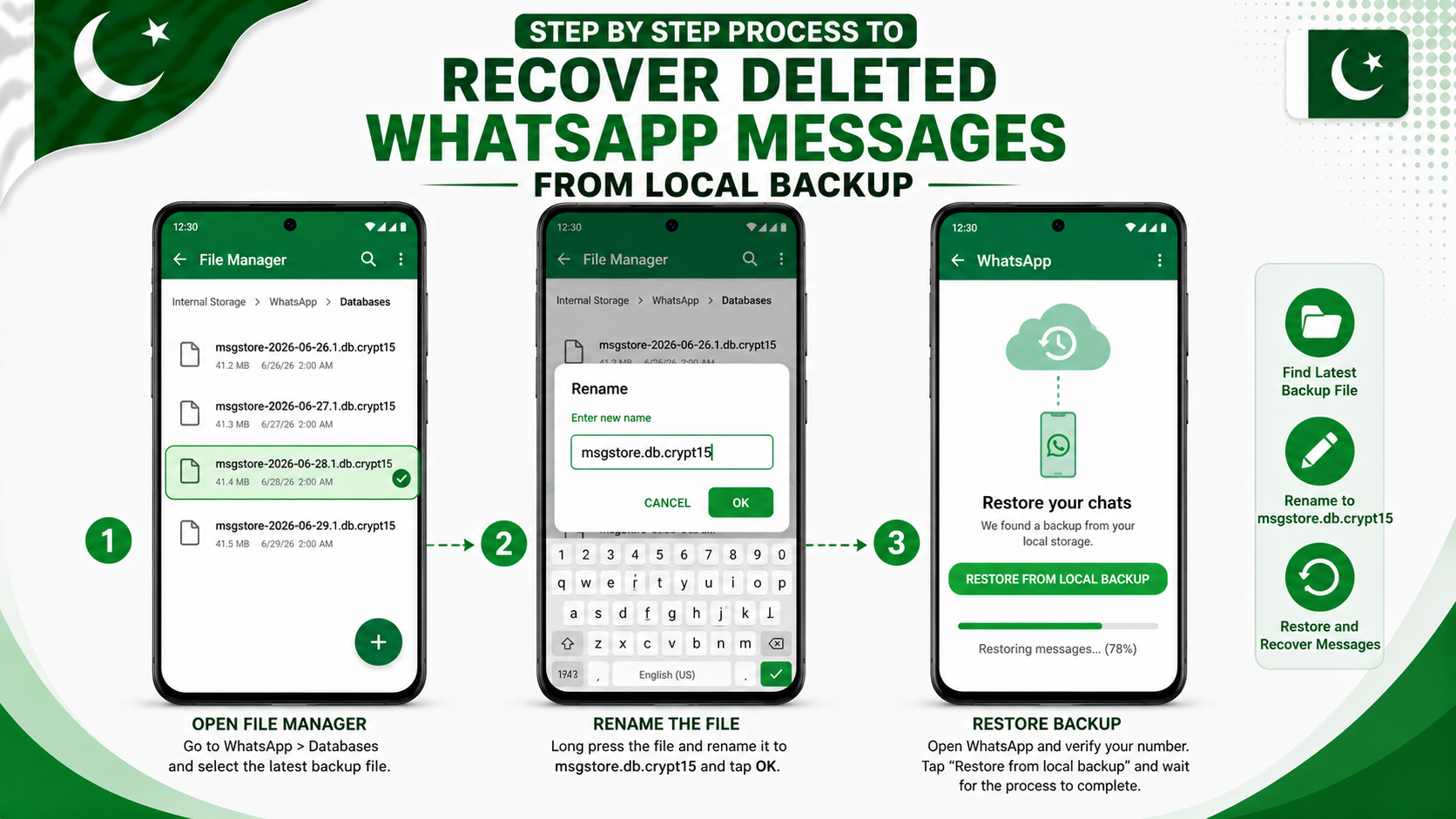
Step 1 — Find the local backup files:
- Open File Manager on your phone
- Go to Internal Storage → WhatsApp → Databases
- You will see files named like:
- msgstore.db.crypt15 — current active backup
- msgstore-2026-06-28.1.db.crypt15 — dated backup from a specific day
- Find the dated backup file from before your messages were deleted
Step 2 — Rename the backup file:
- Long press the dated backup file you want to restore
- Tap Rename
- Rename it exactly to: msgstore.db.crypt15
- If asked to replace the existing file tap Yes
Step 3 — Restore through WhatsApp:
- Uninstall WhatsApp from your phone
- Reinstall WhatsApp from Google Play Store
- Verify your phone number
- WhatsApp will detect the local file you renamed
- Tap Restore from Local Backup
- Your messages from that date will be fully restored
This method may take a little more time, but if you follow all the steps carefully, it works really well. The most important part is finding the correct dated backup file and renaming it before you reinstall WhatsApp.
The good thing is that once you choose the right backup file, your chances of recovering your deleted WhatsApp messages become much higher.
Method 3 — Check WhatsApp Chat Export
If someone in your WhatsApp chat had previously exported the conversation and shared it with you by email, you may still be able to read your deleted messages from that exported file. Although this method will not fully restore your chats, it can still help you see what those deleted messages said.
The good thing is that if an exported chat file is already available, you do not need to install any recovery app to read those messages.
Check your email for old chat exports:
- Open Gmail on your phone
- Search for “WhatsApp Chat” in the search box
- If you previously exported a chat and emailed it to yourself it will appear here
- Open the email and download the attached .txt file
- Open the text file to read the conversation
How to export a WhatsApp chat for future use:
- Open any WhatsApp chat
- Tap three dots (⋮) → More → Export Chat
- Select Without Media or Include Media
- Send it to your Gmail or save to Google Drive
Make this a monthly habit for your most important chats — it takes 30 seconds and gives you a readable backup of every important conversation saved safely in your email.
Method 4 — Check Android Notification History
This is one of the smartest WhatsApp tricks that many Android users in Pakistan still do not know about. If someone sends you a WhatsApp message and deletes it before you get a chance to read it, there is still a possibility that you can see part of that message.
The reason is that Android’s Notification History may have already saved a preview of the message because the notification appeared on your phone before it was deleted. The good thing is that you can check this without installing any third-party app.
How to check notification history on Android:
- Go to Settings → Notifications
- Tap Notification History
- Toggle it ON if not already enabled
- Scroll through recent notifications to find deleted WhatsApp message previews
On Samsung phones:
- Go to Settings → Notifications → Advanced Settings
- Tap Notification History and enable it
- Check the log for recent WhatsApp notifications
Limitation: This method can only show the first 100 characters of a message exactly as they appeared in the notification. It cannot recover photos, videos, or other media files — it only lets you read a short preview of the deleted message.
The good thing is that for messages deleted using the “Delete for Everyone” option, this is often one of the easiest and most effective ways to find out what was written.
How to Set Up WhatsApp Backup Properly
The best way to always be able to recover deleted WhatsApp messages in the future is to set up backup correctly right now. Here is how to configure it properly so you never lose important messages again.
Enable Google Drive backup in WhatsApp:
- Open WhatsApp
- Go to Settings → Chats → Chat Backup
- Tap Back Up to Google Drive
- Select Daily for maximum protection
- Tap Google Account and select your Google account
- Set Back Up Over to Wi-Fi only to save mobile data
- Toggle ON Include Videos if needed
- Tap Back Up Now to create your first backup immediately
Once set up WhatsApp will automatically back up your chats every day when connected to WiFi. You will never have to worry about losing important messages again.
Important: WhatsApp backups stored on Google Drive do NOT count against your 15GB free Google storage limit. This means even large backups with photos and videos are completely free — a major advantage for Pakistani users with limited storage plans.
Important Tips Before You Try Recovery
- Stop using WhatsApp immediately — The moment you realize messages are deleted close WhatsApp. New messages and automatic backups can overwrite the data you need to recover.
- Do not clear WhatsApp cache or data — Going to Settings → Apps → WhatsApp → Clear Data will permanently delete local backup files. Never do this while trying to recover messages.
- Check backup date before restoring — Make sure the backup you restore from is dated before the messages were deleted. Restoring an old backup to get old messages means losing all newer messages.
- Free up phone storage first — If your phone storage is nearly full the restoration process can fail midway. Make sure you have at least 1 to 2GB of free space before starting. Check our guide on how to free up storage space on Android if needed.
- Keep your phone fast and stable — A lagging phone can cause restore errors. If your phone is slow read our guide on how to speed up slow Android phone before attempting restoration.
Frequently Asked Questions
Can I recover deleted WhatsApp messages without any backup?
It is very difficult without any backup at all. If no local or Google Drive backup exists the messages are most likely gone permanently. Some third party recovery apps claim to work without backup but most are unreliable and some are unsafe. Your only realistic option in this case is checking Android notification history using Method 4 above.
How long does WhatsApp keep local backups on my phone?
WhatsApp keeps local backups on your phone for 7 days. After 7 days the oldest backup file is automatically deleted and replaced with a newer one. This is why acting quickly is so important when you realize messages have been deleted.
Can I recover WhatsApp messages deleted by the other person?
If the other person used “Delete for Everyone” you cannot recover the message through WhatsApp backup since it was removed before being saved on your device. However if the message appeared as a notification on your screen before being deleted you may see a short preview of it in Android notification history using Method 4.
Will restoring WhatsApp backup delete my current messages?
Yes. Restoring from backup replaces your current chats with the backed up version. Messages received after the backup date will not be available. Always weigh this carefully — sometimes accepting the loss of old messages is better than losing all recent conversations.
Does WhatsApp backup include photos and videos?
Google Drive backup can include photos and videos if you enabled “Include Videos” in your backup settings. Media files are also saved separately in your phone’s WhatsApp Media folder so photos may still be recoverable from the gallery even if chat backup was not enabled.
How much Google Drive storage does WhatsApp backup use?
WhatsApp backups on Google Drive do not count against your 15GB free Google storage limit. Even large backups with videos are stored for free — which makes Google Drive backup the best and most reliable option for all Pakistani WhatsApp users.
Final Words
Now you know how to recover deleted WhatsApp messages in 2026 using four different methods. Whether you choose the Google Drive backup method, the local backup method, or any of the other options explained in this guide, each one can help depending on your situation.
The good thing is that the Google Drive backup method is the most reliable and complete option, but it only works if your backup was turned on before your messages were deleted. If the messages were deleted within the last 7 days, then the local backup method is also a great option to try.
The most important thing you should do today is enable automatic Google Drive backup for your WhatsApp if you have not done it already. It only takes a few minutes to set up, but it can save you from losing your important chats in the future.
If you found this guide helpful, make sure to share it with your friends and family so they can recover their deleted WhatsApp messages whenever they need to. And if you still have any questions, feel free to leave a comment below.
For more useful WhatsApp and Android guides keep visiting Buzmis — simple tech solutions for everyone in Pakistan.
For official WhatsApp backup help visit the WhatsApp official backup and restore guide.