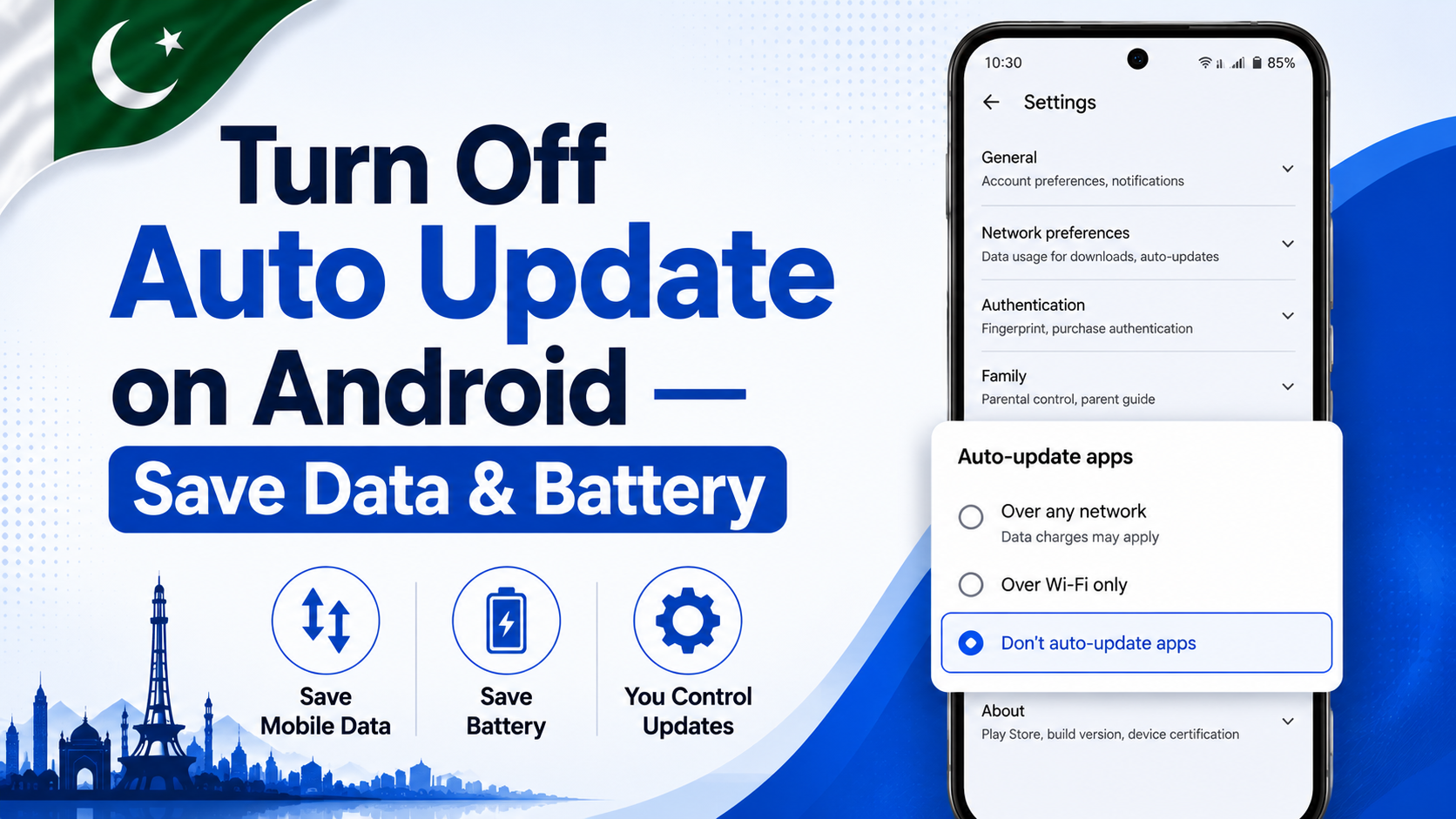
If you want to turn off auto update on Android, you are not alone. Millions of Android users in Pakistan face the same problem — apps update automatically in the background, eating up your precious mobile data without your permission. You might have a 500MB weekly package, and half of it gets used up by app updates you did not even ask for. That is genuinely frustrating.
The good news is that turning off auto updates on Android is simple, free, and takes less than 2 minutes. In this guide, you will learn 5 easy ways to stop automatic app updates and take back full control of your data and battery.
- Why You Should Turn Off Auto Update on Android
- Method 1 — Disable Auto Update in Google Play Store
- Method 2 — Turn Off Auto Update for Individual Apps
- Method 3 — Allow Updates on Wi-Fi Only
- Method 4 — Use Data Saver to Block Background Updates
- Method 5 — Disable System App Updates on Samsung
- Extra Tips to Manage App Updates in Pakistan
- Frequently Asked Questions
Why You Should Turn Off Auto Update on Android
Before jumping into the steps, it is worth understanding why so many people in Pakistan want to disable automatic updates on their Android phones.
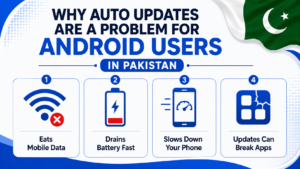
- Mobile data is expensive — In Pakistan, most people use limited data packages. Auto updates can consume hundreds of MBs daily without you even knowing.
- Updates drain battery — Background app updates keep your processor and internet running, which kills your battery faster.
- Some updates break apps — A new update sometimes changes the app layout or removes features you liked. Turning off auto update gives you the choice of when to update.
- Slow phones get slower — On budget Android phones, multiple simultaneous background updates can make your phone lag badly.
Now let us look at all 5 methods to stop automatic updates on your Android phone.
Method 1 — Disable Auto Update in Google Play Store
This is the main and most important step. Google Play Store is where all your app updates come from, so turning off auto update here will stop updates for all apps at once.
Steps to turn off auto update on Android via Play Store:
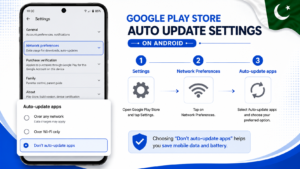
- Open the Google Play Store app on your phone
- Tap your Profile icon in the top right corner
- Tap on Settings
- Tap on Network Preferences
- Tap on Auto-update apps
- Select “Don’t auto-update apps”
- Tap OK to confirm
That is it. From now on, no app will update automatically on your phone. You will only update apps manually when you decide to — which means zero surprise data usage in the background.
This method works on all Android phones — Samsung, Tecno, Infinix, Realme, Xiaomi, Vivo, and any other brand available in Pakistan.
Method 2 — Turn Off Auto Update for Individual Apps
Sometimes you want most apps to auto-update, but you want to stop updates for one or two specific apps. Maybe an app keeps changing after updates and you prefer the older version. In that case, you can disable auto update for individual apps only.
Steps to disable auto update for a specific app:
- Open Google Play Store
- Search for the app you want to stop updating
- Open the app page in Play Store
- Tap the three dots (⋮) in the top right corner
- Uncheck “Enable auto update”
This is very useful if you want WhatsApp or YouTube to keep auto-updating but want to manually control updates for other apps like Facebook or TikTok.
Method 3 — Allow Updates on Wi-Fi Only
If you do not want to completely stop updates but just want to protect your mobile data, this is the smartest option. When you select Wi-Fi only for updates, your apps will only update when you are connected to Wi-Fi — not on your precious mobile data.
Steps to set updates to Wi-Fi only:
- Open Google Play Store
- Tap your Profile icon
- Tap Settings
- Tap Network Preferences
- Tap Auto-update apps
- Select “Over Wi-Fi only”
- Tap OK
This way, whenever you connect to home Wi-Fi or office Wi-Fi, your apps will quietly update in the background. But when you are on mobile data, no updates will happen. This is probably the most balanced setting for users in Pakistan who have limited mobile data but occasional Wi-Fi access.
While you are saving data, also check out our guide on how to check remaining MBs in Pakistan on all networks — so you always know exactly how much data you have left.
Method 4 — Use Data Saver to Block Background Updates
Android has a built-in Data Saver feature that restricts all background internet activity — including automatic app updates. Turning on Data Saver is a quick way to stop apps from updating when you are not actively using them.
How to enable Data Saver on Android:
- Go to Settings
- Tap Connections or Network & Internet
- Tap Data Usage
- Tap Data Saver
- Toggle it ON
When Data Saver is active, apps can only use the internet when you are actively using them — not in the background. This prevents sneaky background updates from eating your data.
Note: Data Saver might also restrict notifications and background syncing for some apps. If you notice this, you can go to Data Saver → Unrestricted Data and whitelist apps like WhatsApp that you want to work normally in the background.
Method 5 — Disable System App Updates on Samsung
Samsung phones in Pakistan come with extra built-in Samsung apps — like Samsung Health, Bixby, Samsung Notes, and others. These apps also update automatically through the Galaxy Store, not just the Google Play Store. Here is how to stop those updates too.
Steps for Samsung Galaxy Store auto-update off:
- Open Galaxy Store app (Samsung’s own app store)
- Tap the Menu icon (☰) or your profile picture
- Go to Settings
- Find Auto Update Apps
- Turn it OFF or set to Wi-Fi only
This is a step that most people miss. Even if you turn off auto update in Google Play Store, Samsung apps will keep updating through Galaxy Store unless you disable it there too. If you own a Samsung phone, make sure to follow this step as well.
Extra Tips to Manage App Updates in Pakistan
Here are some smart habits to manage your app updates better and protect your mobile data:
- Update apps manually at night — Connect to Wi-Fi and manually update all apps at once. Open Play Store, tap your profile, go to Manage Apps & Device, and update all.
- Delete apps you do not use — Unused apps still update in the background. Remove them to save data and storage.
- Check your data usage weekly — Go to Settings → Data Usage to see which apps are consuming the most data. This will help you identify the biggest data wasters.
- Keep security apps updated — Even if you turn off auto update, manually update your antivirus or security apps regularly for protection.
- Block suspicious SIM activity — If you notice sudden unusual data usage that is not from app updates, it might be a SIM or account security issue. Read our guide on how to block SIM card in Pakistan if you ever lose your phone or notice unauthorized activity.
Frequently Asked Questions
Will turning off auto update on Android cause security problems?
Not immediately. However, security updates are important for protecting your phone. If you turn off auto update, make sure to manually update your apps at least once a week — especially banking apps like JazzCash and Easypaisa.
How do I know which apps are updating automatically?
Go to Settings → Apps → See All Apps. Or pull down your notification bar during the day — if you see “Downloading updates” notifications, that means auto update is still active.
Can I update only important apps automatically and block others?
Yes. Use Method 2 above to individually control auto update for each app. You can keep WhatsApp and banking apps on auto update while blocking everything else.
Does turning off auto update work on all Android versions?
Yes. The Google Play Store setting for auto update works on Android 5.0 and above. All phones currently sold in Pakistan support this feature.
Why did my phone update apps even after I turned off auto update?
This can happen if you have multiple Google accounts on your phone. Check that you changed the auto update setting for the correct Google account. Also check if Galaxy Store (on Samsung) is still set to auto update.
Final Words
Now you know exactly how to turn off auto update on Android using 5 different methods. Whether you want to completely stop all updates or just switch to Wi-Fi-only updates, there is an option here for everyone. The Play Store method (Method 1) is the one most people need — it stops all automatic updates instantly with just a few taps.
Take control of your data today and stop letting background updates drain your package without your permission. And if you want more useful Android tips, keep exploring Buzmis — we keep things simple and practical for Pakistani users.
For the latest information on Google Play Store settings, you can visit the official Google Play Help Center.