Want to use WhatsApp on two phones with the same number? You are not alone. This is one of the most searched WhatsApp questions in Pakistan right now. Maybe you carry two phones — one for personal use and one for work. Or maybe you want your WhatsApp running on both your phone and your spouse’s phone at the same time. Whatever the reason, the good news is that WhatsApp officially supports this feature in 2026 — completely free, no hacks, no third-party apps needed.
In this complete guide, you will learn how to use the same WhatsApp number on two different phones using WhatsApp’s official Companion Mode feature. The good thing is that this method is official, safe, and you can set it up step by step without using any third-party app.
- What is WhatsApp Companion Mode
- Method 1 — Link Second Phone Using Companion Mode
- Method 2 — Use WhatsApp Web on Second Phone Browser
- Method 3 — Use Dual Space or Parallel App Feature
- How to Manage Linked Devices
- Important Limitations to Know
- Tips for Using WhatsApp on Two Phones Smoothly
- Frequently Asked Questions
What is WhatsApp Companion Mode
WhatsApp Companion Mode is an official feature introduced by WhatsApp that allows you to use the same WhatsApp account on a second Android phone. In simple words, both phones can send and receive messages at the same time using the exact same WhatsApp number.
Before this feature was introduced, using one WhatsApp number on two different phones was almost impossible without using unofficial tricks or third-party apps. But now, WhatsApp officially allows you to link up to four devices, including another Android phone, tablets, computers, and even WhatsApp Web.
The best part is that this feature is completely official, secure, and free to use, so you do not have to worry about your chats or account security.
Key things to know before starting:
- Your primary phone (where your SIM is) is the main device
- The second phone is the companion device — it does not need your SIM
- Both phones receive all messages simultaneously
- The second phone needs an active internet connection (WiFi or mobile data)
- Companion Mode works even when your primary phone is offline or switched off
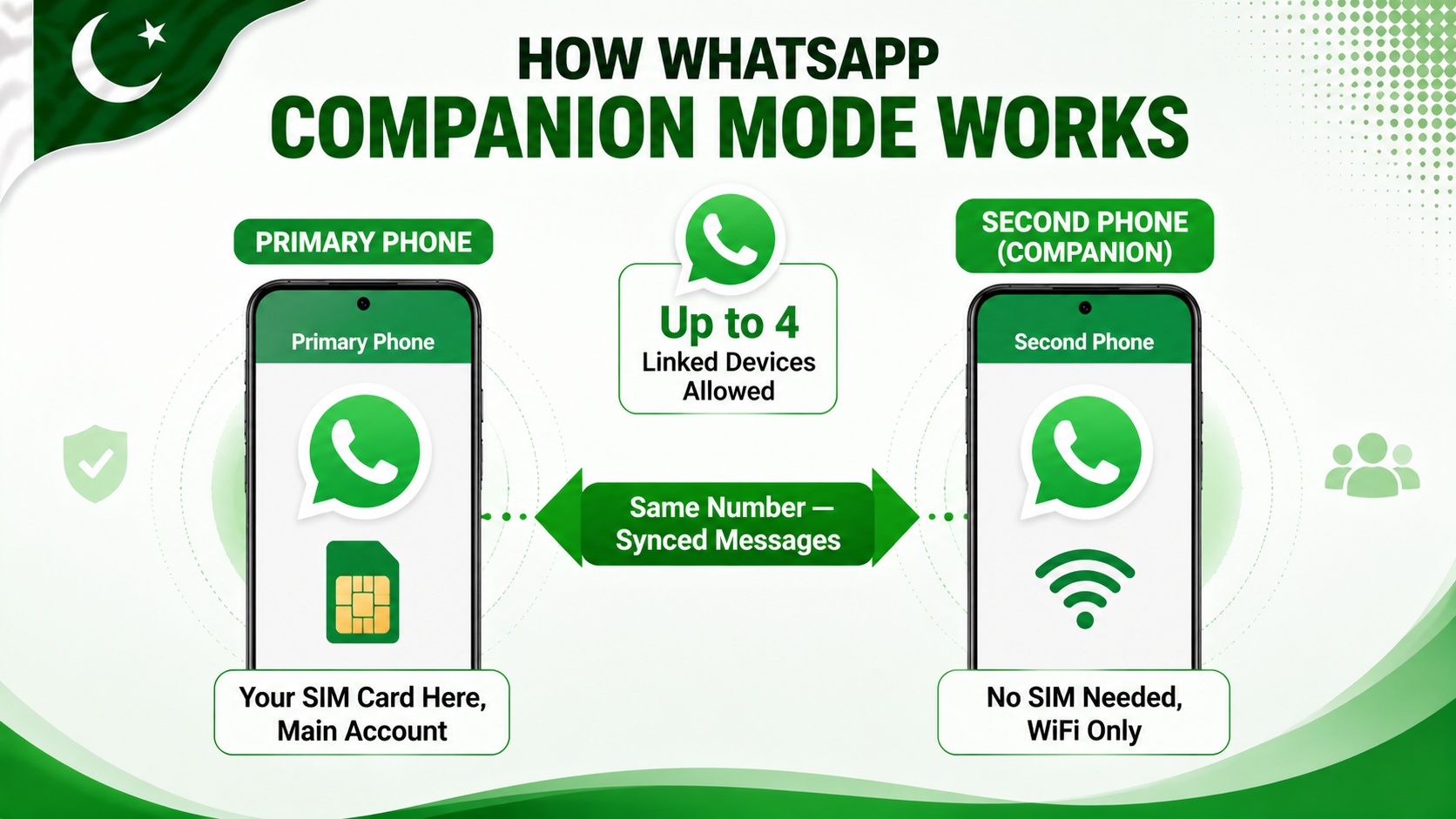
WhatsApp Companion Mode links your second phone to your account — no SIM needed on the second phone, just WiFi or mobile data.
Method 1 — Link Second Phone Using Companion Mode
This is the official and best way to use WhatsApp on two phones with the same number. Follow these steps carefully on both phones.
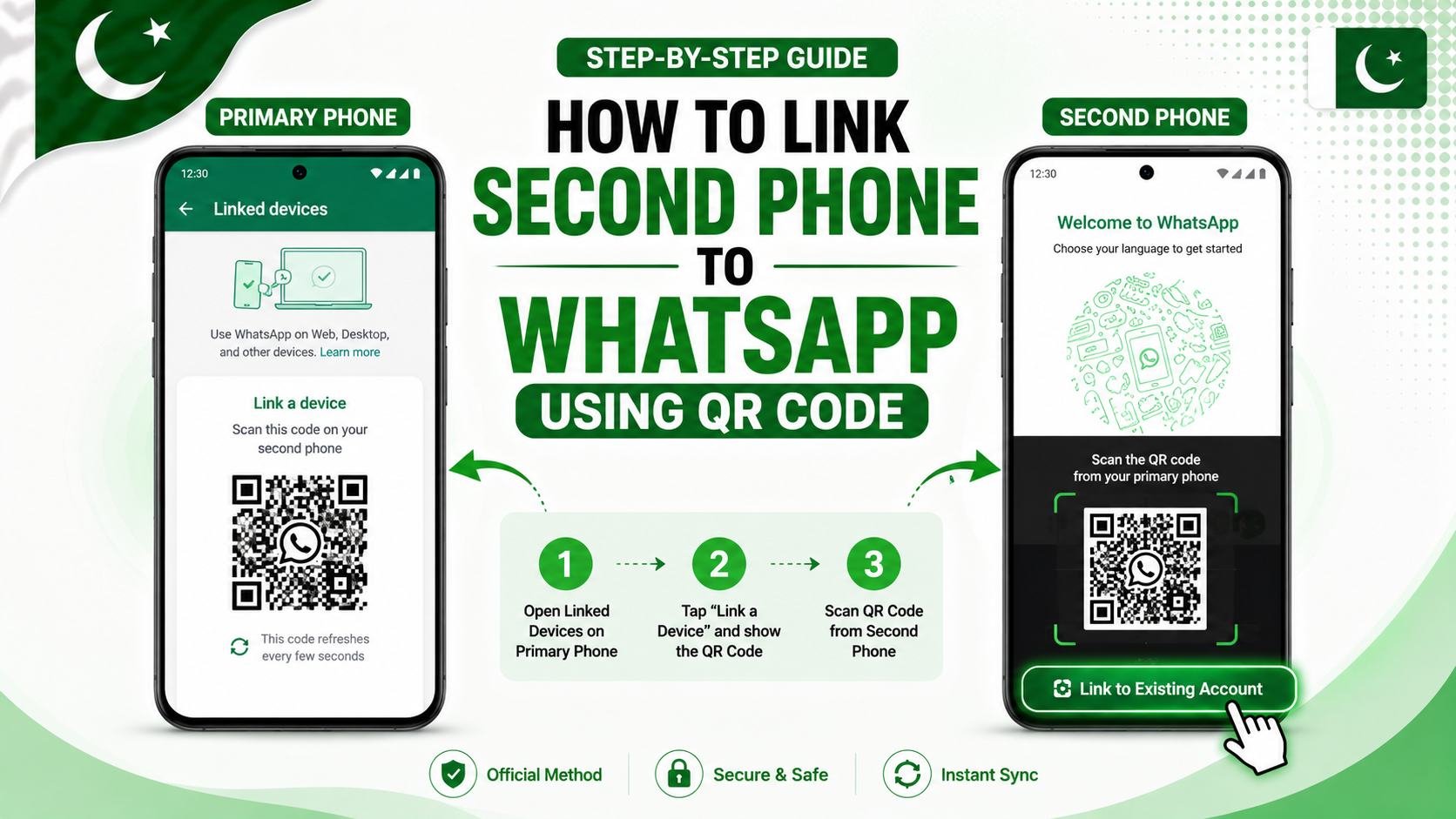
Step 1 — On your PRIMARY phone (where your SIM is):
- Open WhatsApp
- Tap the three dots (⋮) in the top right corner
- Tap Linked Devices
- Tap Link a Device
- Verify with your fingerprint or face unlock if asked
- A QR code scanner will open on your primary phone
Step 2 — On your SECOND phone (companion device):
- Make sure the second phone has WhatsApp installed from Play Store
- Open WhatsApp on the second phone
- On the welcome screen, tap “Link to Existing Account” at the bottom
- Tap “Link with Phone Number” or “Scan QR Code”
- Point the second phone’s camera at the QR code on your primary phone
- Wait a few seconds — WhatsApp will sync all your chats to the second phone
That’s it. Once you complete these steps, both of your phones will start receiving the same WhatsApp messages at the same time. The good thing is that the second phone works independently, so even if your primary phone is turned off or does not have an internet connection, you can still continue using WhatsApp on the second phone.
Important: The second phone does not need a SIM card. It just needs a WiFi or mobile data connection to stay linked.
Method 2 — Use WhatsApp Web on Second Phone Browser
If you do not want to install the WhatsApp app on your second phone, there is another simple option. You can use WhatsApp Web directly from the browser on your second phone. The good thing is that this method is quick, easy to set up, and works on almost any smartphone with a web browser.
Steps:
- On the second phone, open Chrome or any browser
- Go to web.whatsapp.com
- Tap the three dots in Chrome → Desktop Site (to see the full WhatsApp Web interface)
- A QR code will appear on the browser screen
- On your primary phone, go to WhatsApp → Linked Devices → Link a Device
- Scan the QR code shown in the browser on your second phone
- WhatsApp will connect and your chats will appear in the browser
This method is a great option if you only need to use WhatsApp on your second phone occasionally. The good thing is that your WhatsApp Web session will stay active as long as you keep the browser tab open and your second phone remains connected to the internet.
Method 3 — Use Dual Space or Parallel App Feature
Many Android phones available in Pakistan come with a built-in Dual Space or Parallel Apps feature. This feature allows you to use two separate WhatsApp accounts on the same phone, but with different mobile numbers.
Although this is different from using the same WhatsApp number on two phones, it is still a great option for people who have a dual SIM Android phone and want to use two different WhatsApp numbers at the same time. The good thing is that you do not need to install any third-party app to use this feature.
How to use Dual Space on different phone brands:
Samsung phones:
- Go to Settings → Advanced Features
- Tap Dual Messenger
- Find WhatsApp in the list and toggle it ON
- A second WhatsApp icon will appear on your home screen
- Set it up with your second number
Tecno and Infinix phones:
- Go to Settings → Special Features
- Tap Dual App or Clone App
- Enable WhatsApp from the list
- A cloned WhatsApp will appear for use with your second SIM
Xiaomi and Redmi phones:
- Go to Settings → Apps
- Tap Dual Apps
- Toggle ON WhatsApp
- Use the second WhatsApp with your second number
This method uses two different WhatsApp numbers on one phone. If you want to use the same number on two separate phones, use Method 1 above.
How to Manage Linked Devices
Once you have linked your second phone, you can easily manage all your linked devices from your primary phone. This is useful for checking which devices are active and removing any device you no longer want to have access to your WhatsApp.
How to view and manage linked devices:
- Open WhatsApp on your primary phone
- Tap the three dots (⋮) → Linked Devices
- You will see a list of all currently linked devices with their last active time
- Tap any device to see options
- Tap Log Out to remove that device from your account
You can link up to 4 devices total on one WhatsApp account — including phones, tablets, and computers. If you want to add a fifth device, you must remove one existing linked device first.
Important Limitations to Know
Before using WhatsApp Companion Mode, there are some limitations you should be aware of:
- Calls may not work on companion device — Voice and video calls may be limited or unavailable on the second phone depending on your WhatsApp version and phone model.
- Some chats may not sync immediately — Very old chats from before linking may not appear on the second phone. Only recent chats sync during initial setup.
- Both phones need internet — Unlike the primary phone which works offline, the second phone needs active internet to send and receive messages.
- Business accounts have restrictions — If you use WhatsApp Business, companion mode works slightly differently. Check WhatsApp Business settings for linked device options.
- Status updates are shared — Any status you post on one phone appears the same on the other, since it is the same account.
Tips for Using WhatsApp on Two Phones Smoothly
- Keep both phones connected to internet — The second phone only receives messages when it has internet access. Connect it to home WiFi to ensure you never miss messages.
- Set different notification sounds — If both phones are nearby, you will hear double notifications. Set a different notification sound on the second phone so you know which phone is ringing.
- Protect your second phone — Since the second phone has full access to your WhatsApp, make sure it has a screen lock PIN. If the second phone is lost or stolen, immediately go to Linked Devices on your primary phone and log out the stolen device. Read our guide on best free antivirus apps for Android to protect both your phones from security threats.
- Backup your chats regularly — When using WhatsApp on two phones, always make sure backup is enabled on your primary phone. Read our guide on how to recover deleted WhatsApp messages to understand how backup and recovery works.
- Log out when not needed — If you only occasionally need WhatsApp on the second phone, log out the companion device when not in use. This saves battery on the second phone and keeps your account more secure.
Frequently Asked Questions
Can I use WhatsApp on two phones with the same number without Companion Mode?
Before Companion Mode was released, people used to use third-party apps and cloning methods. These unofficial methods are no longer recommended as they violate WhatsApp’s terms of service and can result in your account being banned. Always use the official Companion Mode method explained in this guide.
Does the second phone need a SIM card to use WhatsApp?
No. The second phone only needs an internet connection — either WiFi or mobile data. No SIM card is required on the companion device. You can even use an old phone that no longer has an active SIM as the second WhatsApp device.
Will the other person know I am using WhatsApp on two phones?
No. People you chat with have no way of knowing whether you are using one phone or two phones. Your WhatsApp number, name, and profile remain exactly the same from their perspective.
Can both phones send messages at the same time?
Yes. Both phones have full send and receive capability. If someone messages you, both phones get the notification. If you reply from the second phone, the other person receives the message normally and it also appears on your primary phone.
What happens if my primary phone is switched off?
WhatsApp Companion Mode now works even when the primary phone is switched off or offline. The second phone continues to receive and send messages independently for up to 14 days without the primary phone being online.
Can I use WhatsApp on more than two phones?
Yes. WhatsApp allows up to 4 linked devices total. You can link multiple phones, a tablet, and a computer all at the same time. However, in practice, most people only need two devices — a primary phone and one companion.
Is WhatsApp Companion Mode free?
Yes, completely free. WhatsApp Companion Mode is an official built-in feature of WhatsApp available to all users at no cost. You do not need WhatsApp Business or any premium subscription to use it.
Final Words
Now you know exactly how to use WhatsApp on two phones with the same number in 2026. WhatsApp’s official Companion Mode makes the whole process simple, safe, and free — no hacks, no third-party apps, no risk of getting banned. Just link your second phone with a QR code and both devices work perfectly together.
Whether you carry two phones for work and personal use, or want to stay connected on a spare device at home, Companion Mode is the clean and reliable solution. Set it up once and it works seamlessly in the background.
For more useful WhatsApp and Android guides, keep visiting Buzmis — simple tech solutions for everyone in Pakistan.
For official WhatsApp Companion Mode details, visit the WhatsApp official linked devices help page.