Activate mobile data on Android is one of the most searched questions by smartphone users in Pakistan. Sometimes you turn on your phone and the internet just does not work. No signal bars, no loading, nothing. It can be super frustrating — especially when you are in the middle of something important. The good news is that fixing this is usually very simple and takes less than a minute.
In this complete guide, you will learn 5 easy steps to activate mobile data on Android — plus some extra tips to fix common internet problems on your phone.
Step 1 — Turn On Mobile Data from Quick Settings
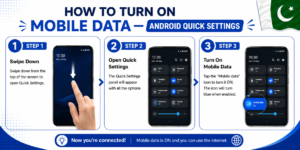
The fastest way to activate mobile data on Android is through the Quick Settings panel. This is the shortcut menu that appears when you swipe down from the top of your screen.
Here is how to do it:
- Swipe down from the top of your phone screen
- Look for the Mobile Data icon — it usually looks like two arrows or a signal tower
- Tap it once to turn it ON
- The icon will light up or turn blue when data is active
This method works on almost every Android phone — Samsung, Tecno, Infinix, Vivo, Realme, Xiaomi, and others. It is the quickest way and most people use this daily.
Pro Tip: If you cannot find the Mobile Data icon, swipe down twice or look for an “Edit” button to add the icon to your quick panel.
Step 2 — Enable Mobile Data from Phone Settings
If the quick panel method does not work, go directly into your phone settings. This is a more reliable way to activate mobile data on Android properly.
Steps for most Android phones:
- Open Settings app on your phone
- Tap on Connections or Network & Internet
- Tap on Mobile Networks or SIM & Network
- Toggle ON the Mobile Data switch
- Wait 5-10 seconds for the internet to connect
For Samsung phones specifically:
- Go to Settings
- Tap Connections
- Tap Data Usage
- Toggle ON Mobile Data
Samsung is one of the most popular phone brands in Pakistan, so this path is worth remembering. Other brands like Tecno and Infinix follow the general Android path mentioned above.
Step 3 — Check Your APN Settings
APN stands for Access Point Name. This is basically the internet address your phone uses to connect to your mobile network. If APN settings are wrong or missing, your internet will not work even if mobile data is turned on.
How to check APN on Android:
- Go to Settings
- Tap Connections or Network & Internet
- Tap Mobile Networks
- Tap Access Point Names (APN)
- You should see your network APN listed there
Correct APN settings for Pakistani networks:
| Network | APN Name | APN Value |
|---|---|---|
| Jazz | Jazz Internet | jazz.internet |
| Telenor | Telenor Internet | internet |
| Zong | Zong Internet | zonginternet |
| Ufone | Ufone Internet | ufone.internet |
If your APN is missing or incorrect, simply tap the + button to add a new APN and enter the correct values for your network.
Step 4 — Select the Right SIM for Data
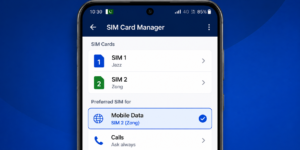
If you have a dual SIM phone, your internet might not be working simply because the wrong SIM is selected for mobile data. This is a very common issue and easy to fix.
How to select SIM for mobile data:
- Open Settings
- Tap Connections or SIM Card Manager
- Look for Mobile Data or Preferred SIM for Data
- Select the correct SIM that has your active data package
For example, if your Zong SIM has a monthly internet package but your phone is set to use Jazz for data, the internet will not work even though your package is active. Always double check this setting first when internet stops working suddenly.
Step 5 — Restart Your Phone
Sometimes the simplest solution is the best one. If you have tried all the steps above and mobile data is still not working, just restart your phone. A fresh restart clears minor software glitches that can block your internet connection.
How to restart properly:
- Press and hold the power button
- Select Restart (not just Power Off)
- Wait for the phone to fully boot up
- Check if mobile data is working now
If a simple restart does not help, try turning on Airplane Mode for 10 seconds and then turning it off. This forces your phone to reconnect to the mobile network and often fixes the issue instantly.
How to Fix Mobile Data Not Working on Android
Even after following all the steps, sometimes mobile data still refuses to work. Here are some additional fixes to try:
Reset Network Settings
This will reset all your WiFi, Bluetooth, and mobile network settings back to default. You will need to re-enter WiFi passwords after this.
- Go to Settings
- Tap General Management or System
- Tap Reset
- Select Reset Network Settings
- Confirm and restart your phone
Check Your Data Package Balance
Your mobile data toggle might be ON but your internet package may have expired or run out of MBs. Check your remaining data balance using your network’s USSD code:
- Jazz: *117*4*2#
- Telenor: *999#
- Zong: *102#
- Ufone: *706#
Want the full guide on checking MBs? Read our article on how to check remaining MBs in Pakistan on all networks.
Update Your Android Software
An outdated Android version can sometimes cause connectivity issues. Go to Settings → Software Update and install any pending updates.
Contact Your Network Helpline
If nothing works, the problem might be on your network’s end — like a temporary tower outage or SIM issue. Call your helpline:
- Jazz: 111
- Telenor: 345
- Zong: 310
- Ufone: 333
Frequently Asked Questions
Why is my mobile data on but not working?
This usually happens because of wrong APN settings, expired data package, wrong SIM selected for data, or a temporary network outage in your area. Follow the steps above to fix it.
How do I activate mobile data on Android for the first time?
When you insert a new SIM, your phone should automatically configure the internet settings. If it does not, go to Settings → Mobile Networks → APN and add the correct APN for your network manually.
Does turning on mobile data use my balance?
Turning on mobile data only uses your internet package MBs. If your package is finished, it may deduct from your main balance depending on your network settings. You can disable data roaming to avoid unexpected charges.
Why does my internet work on WiFi but not on mobile data?
This confirms the problem is with your mobile data settings or SIM, not the phone itself. Check your APN settings and make sure the correct SIM is selected for data.
Can I activate mobile data without going into settings?
Yes — the quickest way is through the Quick Settings panel. Just swipe down from the top of your screen and tap the Mobile Data icon.
Final Words
Activating mobile data on Android is not complicated once you know where to look. Start with the Quick Settings shortcut, check your SIM selection, verify your APN, and restart if needed. These 5 steps fix the problem in almost every case.
If you found this guide helpful, also check out our article on how to check your own mobile number in Pakistan — another useful tip for Android users.
For official APN settings, you can visit the Jazz official website for the most up-to-date information.