If you want to speed up slow Android phone, you have come to the right place. Nothing is more frustrating than a phone that used to run perfectly but now lags, freezes, and takes forever to open a simple app. This problem is extremely common in Pakistan — especially on budget Android phones from brands like Tecno, Infinix, Samsung Galaxy A series, and Vivo. The good news is that in most cases, you can fix a slow Android phone completely at home without spending a single rupee.
In this guide, you will learn exactly how to speed up slow Android phone fast using 7 simple and proven methods that actually work in 2026.
- Why Your Android Phone Gets Slow
- Tip 1 — Clear App Cache Regularly
- Tip 2 — Free Up Storage Space
- Tip 3 — Remove or Disable Unused Apps
- Tip 4 — Turn Off Animations in Developer Options
- Tip 5 — Stop Background Apps and Processes
- Tip 6 — Keep Your Android Software Updated
- Tip 7 — Factory Reset as the Last Option
- Daily Habits to Keep Your Android Fast
- Frequently Asked Questions
Why Your Android Phone Gets Slow
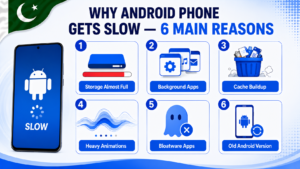
Understanding why your Android phone slows down makes it easier to fix. Here are the most common reasons:
- Full internal storage — Android needs at least 10% free storage to run smoothly. When storage is almost full, everything slows down.
- App cache buildup — Every app stores temporary files. Over months, these pile up and slow down app loading.
- Too many background apps — WhatsApp, Facebook, TikTok, and other apps keep running in the background and eat up your phone’s RAM.
- Heavy animations — Transition effects look nice but actually delay how fast your screen responds.
- Bloatware — Budget phones come with pre-installed apps that waste resources even when you never open them.
- Outdated Android version — Old software misses performance improvements and bug fixes that make phones faster.
Now let us fix all of these one by one and speed up slow Android phone properly.
Tip 1 — Clear App Cache to Speed Up Slow Android Phone
Clearing app cache is the fastest single step you can take to speed up slow Android phone without losing any of your personal data. Cache files are just temporary data that apps store for faster loading — but when they accumulate over months, they cause the opposite effect.
How to clear cache for individual apps:
- Open Settings on your phone
- Tap Apps or Application Manager
- Tap a heavy app like Chrome, YouTube, or Facebook
- Tap Storage
- Tap Clear Cache
One-tap cache clearing on Samsung:
- Go to Settings
- Tap Battery and Device Care
- Tap Storage
- Tap Clean Now
Focus on your top 5 heaviest apps first — Chrome, YouTube, Facebook, TikTok, and WhatsApp. These five alone can store over 1GB of junk cache on a phone that has not been cleaned for a few months. After clearing, you will feel apps opening noticeably faster right away.
Tip 2 — Free Up Storage Space on Your Android Phone
When your phone storage drops below 10% to 15% free space, Android starts struggling badly. It cannot write temporary files, process tasks, or load apps properly — and everything gets slower as a result.
Fastest ways to free up storage right now:
- Open File Manager and delete all WhatsApp videos you do not need
- Clear your Downloads folder — PDFs, APKs, and old files pile up fast
- Back up photos to Google Photos and delete local copies
- Uninstall apps you have not opened in 30 days or more
For a full detailed guide with 7 complete methods, read our article on how to free up storage space on Android phone. Following that guide can recover multiple gigabytes of space and make a dramatic difference in your phone speed.
Tip 3 — Remove or Disable Unused Apps
Every app on your phone uses storage and may run background processes that waste RAM. Removing unused apps is one of the most effective ways to speed up slow Android phone with immediate results.
How to uninstall apps on Android:
- Go to Settings → Apps
- Sort by Size to see which apps take the most space
- Tap any unused app
- Tap Uninstall and confirm
How to disable bloatware you cannot delete:
- Go to Settings → Apps
- Find any pre-installed app you never use
- Tap it and select Disable
- The app stops running in the background immediately
Pakistani budget phones from Tecno, Infinix, and Itel often come with 10 to 15 pre-installed apps and games that most people never use. Disabling all of them gives a surprising boost to both speed and battery life.
Tip 4 — Turn Off Animations in Developer Options
This is the most underrated trick to speed up slow Android phone — and it works on every single Android brand. Turning off screen animations removes all the visual delays between actions, making your phone feel dramatically faster and more responsive.
Step by step — how to turn off animations:
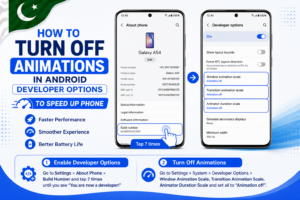
- Go to Settings → About Phone
- Find Build Number and tap it 7 times quickly
- You will see a message: “You are now a developer”
- Go back to Settings and open Developer Options
- Scroll down and find these three settings:
- Window Animation Scale → Set to 0.5x or Animation off
- Transition Animation Scale → Set to 0.5x or Animation off
- Animator Duration Scale → Set to 0.5x or Animation off
After making these changes, your phone will feel like it received a hardware upgrade. Apps open faster, switching between screens is snappier, and everything responds almost instantly. This works on Samsung, Tecno, Infinix, Xiaomi, Vivo, and all other Android phones.
Tip 5 — Stop Background Apps and Processes
Apps like Facebook, Instagram, and news apps keep running in the background even after you close them — syncing data and using up RAM that your phone needs for active tasks. Restricting background activity helps your phone stay fast throughout the day.
How to restrict background activity:
- Go to Settings → Apps
- Select a heavy background app like Facebook
- Tap Battery
- Select Restricted to stop background activity
Enable RAM Plus on Samsung phones:
- Go to Settings → Battery and Device Care
- Tap Memory
- Find RAM Plus and turn it ON
- Select 4GB or 8GB of virtual RAM
Samsung RAM Plus uses a portion of your storage as virtual RAM, which is especially helpful on entry-level Galaxy phones with only 3GB or 4GB of physical RAM. It keeps more apps in memory so switching between them feels smoother.
Tip 6 — Keep Your Android Software Updated
Many people in Pakistan skip software updates to avoid using mobile data — but this is a mistake. Android updates almost always include performance improvements, memory management fixes, and security patches that directly help speed up slow Android phone over time.
How to check and install Android updates:
- Go to Settings
- Tap Software Update or About Phone
- Tap Check for Updates
- If an update is available, connect to WiFi and install it
Always download updates on WiFi to avoid using your mobile data package. If you are worried about data usage, check our guide on how to check remaining MBs in Pakistan before downloading any large update.
Tip 7 — Factory Reset as the Last Option
If you have tried all six tips above and your Android is still frustratingly slow, a factory reset will return your phone to the exact condition it was in on day one. It erases everything and gives you a completely clean fresh start.
Before factory reset — back up everything first:
- Back up photos and videos to Google Photos
- Save contacts to your Google account
- Back up WhatsApp: Settings → Chats → Chat Backup
- Note down any important passwords or account details
How to factory reset Android:
- Go to Settings
- Tap General Management or System
- Tap Reset → Factory Data Reset
- Read the warning carefully and confirm
- Phone will restart and return to factory settings
A factory reset is the most powerful fix — after this, your phone will feel as fast as the day you bought it. Only use this as a last resort after trying all other methods first.
Daily Habits to Keep Your Android Fast
Once you have fixed the slowness, these simple habits will keep your phone running fast every day:
- Restart your phone once a week — Clears RAM, kills background processes, and refreshes the entire system. This single habit prevents most slowdowns from coming back.
- Always keep at least 2GB of storage free — Do a quick cleanup whenever storage gets low.
- Do not install apps you will use only once — Use your mobile browser for one-time tasks instead of installing a dedicated app.
- Turn off auto updates to prevent surprise slowdowns — Multiple apps updating at the same time in the background can completely freeze a budget phone. Read our guide on how to turn off auto update on Android to prevent this.
- Never use third-party speed booster apps — These apps claim to speed up your phone but actually slow it down by running constantly in the background. Your phone’s built-in cleaner is always better.
Frequently Asked Questions
How to speed up slow Android phone without factory reset?
Clear app cache, free up storage, disable unused apps, and turn off animations in Developer Options. These four steps fix slowness in the majority of cases without needing a factory reset.
Why does my Android phone get slow after a few months?
Cache builds up, storage fills up, more background apps accumulate, and sometimes software bugs appear over time. Regular monthly maintenance — clearing cache and deleting junk — prevents this from happening.
Does adding an SD card help speed up Android phone?
Adding an SD card frees up internal storage, which helps Android run smoother. However, avoid moving apps to SD card as SD cards are slower than internal storage and will make apps open slower, not faster.
Is it safe to enable Developer Options on Android?
Yes, completely safe. Enabling Developer Options just to adjust animation settings does not affect your phone’s security, warranty, or performance in any negative way. Be careful not to change other advanced settings inside Developer Options that you do not understand.
How much free storage should I keep on Android at all times?
Keep at least 10% to 15% of your total storage free at all times. On a 64GB phone, that means keeping at least 6GB to 10GB free. When storage drops below this level, Android performance starts to degrade noticeably.
Can a slow Android phone become fast again in 2026?
Absolutely yes. With the tips in this guide, even a 3 to 4 year old budget Android phone can be made noticeably faster without any cost. The animation trick and cache clearing alone make a dramatic difference on most phones.
Final Words
Now you know exactly how to speed up slow Android phone using 7 simple proven methods. Start with clearing cache and freeing up storage — these two steps alone fix slowness in most cases. Then try turning off animations, stopping background apps, and keeping your software updated. If nothing works, a factory reset will make your phone feel brand new again.
Your Android phone does not have to stay slow. A few minutes of maintenance today can give you months of smooth, fast performance. For more simple Android tips and guides, keep visiting Buzmis — simple tech solutions for everyone in Pakistan.
For official Android performance guidance, visit the Google Android Help Center.