Want to connect phone to TV without cable? You are not the only one. Whether you want to watch YouTube videos on a bigger screen, show family photos during a gathering, play mobile games on your TV, or stream your favorite shows, mirroring your phone to a TV wirelessly has become incredibly common. The best part is that most Android phones already have this feature built in — you do not need to buy any expensive cable or device in most cases.
In this complete guide, you will learn 5 easy ways to connect phone to TV without cable, covering both Smart TVs and regular TVs in Pakistan.
- Method 1 — Screen Mirroring on Smart TV (Built-In)
- Method 2 — Google Cast / Chromecast
- Method 3 — Samsung Smart View
- Method 4 — Use YouTube and Netflix Cast Button
- Method 5 — Connect to Non-Smart TV with Streaming Device
- Common Connection Problems and Fixes
- Tips for Best Screen Mirroring Experience
- Frequently Asked Questions
Method 1 — Screen Mirroring on Smart TV (Built-In)
If you have a Smart TV — Samsung, LG, Sony, TCL, Haier, or any other brand — it almost certainly has a built-in screen mirroring feature. This is the easiest way to connect phone to TV without cable since both devices already support it out of the box.
Steps on your Smart TV:
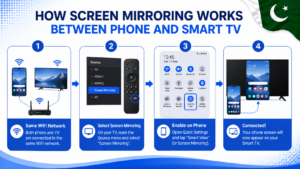
- Make sure your TV and phone are connected to the same WiFi network
- On your TV remote, look for a Source or Input button
- Select Screen Mirroring or Smart View from the source list
- Your TV will now show “Waiting for connection”
Steps on your Android phone:
- Swipe down from the top of your screen to open Quick Settings
- Look for Smart View, Screen Cast, or Wireless Display icon
- Tap it and wait for your phone to search for nearby devices
- Select your TV name from the list
- Your phone screen will now appear on your TV instantly
This method shows everything happening on your phone — apps, photos, games, browsing — directly on the big screen in real time. It works without any cable or extra hardware.
Method 2 — Google Cast / Chromecast
If your TV does not have built-in screen mirroring or you want a more reliable connection, Google Chromecast is an excellent option. Many newer Smart TVs in Pakistan come with Chromecast already built in (often called “Chromecast built-in” or “Google TV”).
If your TV has Chromecast built-in:
- Open the app you want to cast (YouTube, Netflix, Google Photos, etc.)
- Look for the Cast icon (rectangle with WiFi signal lines) at the top of the app
- Tap it and select your TV from the list
- The content will start playing directly on your TV
If your TV does not have Chromecast:
- Buy a Chromecast device and plug it into your TV’s HDMI port
- Connect the Chromecast to your home WiFi using the Google Home app
- Once set up, use the Cast button in any app to mirror your phone
Chromecast devices are affordable and widely available in electronics markets across Pakistan including Hafeez Center in Lahore and similar markets in other cities. This is a one-time purchase that turns any regular TV into a smart casting-ready TV.
Method 3 — Samsung Smart View
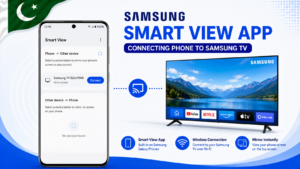
If you own a Samsung phone and a Samsung Smart TV, Samsung’s own Smart View app gives you the smoothest mirroring experience with extra features like remote control and notification syncing.
Steps to use Samsung Smart View:
- Download Smart View app from Play Store (if not already installed)
- Make sure your Samsung phone and Samsung TV are on the same WiFi network
- Open Smart View app
- Your TV should appear in the device list automatically
- Tap your TV name to connect
- Your phone screen will mirror to the TV instantly
Samsung Smart View also allows you to use your phone as a remote control for your TV, browse TV channels from your phone, and even sync notifications so you can see WhatsApp messages while watching TV.
Method 4 — Use YouTube and Netflix Cast Button
If you just want to watch a specific video or show without mirroring your whole phone screen, using the built-in Cast button inside streaming apps is the simplest method. This also saves your phone battery since the video plays directly from the internet to your TV.
Steps for YouTube:
- Open YouTube app on your phone
- Find the video you want to watch
- Tap the Cast icon at the top right of the video player
- Select your TV from the list
- Video starts playing on your TV while you can control playback from your phone
Steps for Netflix:
- Open Netflix app
- Start playing any show or movie
- Tap the Cast icon on the playback screen
- Select your TV
This method only works if your TV supports Google Cast or has the YouTube/Netflix app installed directly. It is the most battery-friendly and data-friendly way to watch content on a bigger screen.
Method 5 — Connect to Non-Smart TV with Streaming Device
If you have an older, non-Smart TV without WiFi capability, you can still connect phone to TV without cable by adding an affordable streaming device. This gives your old TV all the smart features of a modern Smart TV.
Popular streaming devices available in Pakistan:
- Google Chromecast — Plug into HDMI port, connect to WiFi, and cast from your phone
- Android TV Box — A small box that turns any TV into a full Android Smart TV with its own apps and screen mirroring
- Mi TV Stick — Compact stick device with built-in screen mirroring support
General setup steps for any streaming device:
- Plug the device into your TV’s HDMI port
- Connect the device to your home WiFi network
- Install any required app on your phone (usually Google Home or a device-specific app)
- Use the screen mirroring or cast option from your phone to connect
These devices typically cost a few thousand rupees and instantly modernize any old television, giving you full screen mirroring capability without needing any cable.
Common Connection Problems and Fixes
Screen mirroring usually works smoothly, but sometimes you might run into connection issues. Here are quick fixes for the most common problems:
Phone cannot find the TV
Make sure both your phone and TV are connected to the exact same WiFi network. Devices on different networks (like 2.4GHz vs 5GHz) sometimes cannot detect each other. Try switching your phone to the same WiFi band as the TV.
Mirroring is laggy or delayed
This usually happens due to weak WiFi signal. Move your phone and TV closer to your WiFi router, or restart your router for a fresh connection.
Connection keeps disconnecting
Make sure your phone’s battery saver mode is turned off, as it can interrupt WiFi connections. Also check that your phone’s screen timeout is not set too short.
No sound coming through on TV
Check your TV’s volume settings and make sure the TV speaker is selected as the output, not the phone speaker. Some TVs have a separate audio output setting in the Smart View or Cast options.
Tips for Best Screen Mirroring Experience
- Use 5GHz WiFi if available — 5GHz WiFi gives faster and more stable mirroring compared to 2.4GHz, especially for video content.
- Close unnecessary apps — Running too many apps in the background while mirroring can cause lag. Close apps you are not using.
- Keep your phone storage free — Low storage can slow down your phone’s performance during mirroring. Check our guide on how to check remaining MBs in Pakistan to also monitor your data while streaming.
- Turn off auto updates while mirroring — Background app updates can interrupt your screen mirroring session. See our guide on how to block SIM card in Pakistan for related security tips, and disable auto updates before important presentations or movie nights.
- Restart both devices if nothing works — A simple restart of your phone and TV fixes most connection issues instantly.
Frequently Asked Questions
Do I need internet to mirror my phone to TV?
You need WiFi for the local connection between your phone and TV, but you do not necessarily need active mobile data or internet — unless you are streaming online content like YouTube or Netflix, which does require internet.
Can I connect an iPhone to a non-Apple TV without cable?
Yes, but the process is different. iPhones use AirPlay, which works directly with Smart TVs that support AirPlay 2, or you can use a Chromecast with supporting apps. Not all Android Smart TVs support AirPlay natively.
Why does screen mirroring drain my phone battery fast?
Screen mirroring keeps your phone’s screen on and actively transmitting data continuously, which uses more battery than normal use. Keep your phone connected to a charger during long mirroring sessions like movies.
Can I mirror my phone to TV without WiFi at home?
Some phones support a feature called Miracast, which creates a direct WiFi connection between your phone and TV without needing a home WiFi network or router. Check your phone’s Quick Settings for a “Screen Cast” option that works without internet.
Is screen mirroring free on Android?
Yes, built-in screen mirroring features on Android phones and Smart TVs are completely free. You only need to pay if you choose to buy an additional streaming device like Chromecast for older TVs.
Final Words
Now you know 5 easy ways to connect phone to TV without cable. If you have a Smart TV, built-in screen mirroring is the simplest starting point. For older TVs, a small investment in a Chromecast or Android TV Box opens up the same wireless experience. Pick the method that matches your TV and enjoy your phone content on the big screen.
For more useful Android tips and tricks, keep visiting Buzmis — simple tech solutions for everyone in Pakistan.
For official Chromecast setup help, visit the Google Chromecast Help Center.