If you are an Android user and your phone keeps showing the “Storage Full” warning again and again, you are not alone. This is one of the most common problems faced by Android users across Pakistan, especially those using phones with 32GB or 64GB storage.
Photos, videos, WhatsApp data, app cache, downloaded files, and different apps slowly keep filling up your phone storage while you continue using your device without even noticing. Once the storage becomes completely full, your phone starts slowing down, the camera may stop working properly, and apps begin crashing or closing repeatedly.
But the good thing is that for this problem, you, your family members, or even your friends do not need to buy a new phone or delete your important photos and data. In this complete guide, you will learn 7 proven ways to free up storage space on Android quickly and safely without deleting your important photos, while keeping all your necessary files and data protected.
- Why Android Storage Gets Full So Fast
- Method 1 — Clear App Cache on Android
- Method 2 — Delete WhatsApp Media You Do Not Need
- Method 3 — Remove Unused Apps
- Method 4 — Use Google Photos to Backup and Free Space
- Method 5 — Move Files to SD Card
- Method 6 — Clear Downloads Folder
- Method 7 — Use Android Built-In Storage Cleaner
- Extra Tips to Keep Storage Free
- Frequently Asked Questions
Why Android Storage Gets Full So Fast
Before jumping into the fixes, it is important to understand where all your phone storage is actually going and what is filling it up. Most people are surprised when they check for the first time and realize how quickly storage gets used.
Below, we have listed the biggest things that use the most storage on your phone — whether it is your own Android device, a family member’s phone, or even your friend’s phone.
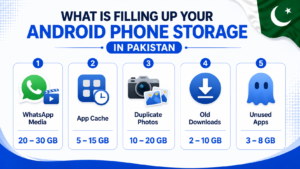
- WhatsApp media — Photos, videos, voice notes, and documents that people send you in groups get automatically saved to your phone. A few active WhatsApp groups can fill gigabytes within weeks.
- App cache — Every app stores temporary data called cache. YouTube, Facebook, TikTok, and Chrome can each store hundreds of MBs of cache data over time.
- Duplicate photos — Taking multiple shots of the same thing, screenshots, and downloaded memes add up faster than you think.
- Old downloads — PDF files, APKs, and documents you downloaded once and never opened again sit in your Downloads folder taking up space.
- Unused apps — Apps you installed once and forgot about still take up storage space and keep updating automatically.
Now let us fix all of this with 7 simple methods.
Method 1 — Clear App Cache on Android
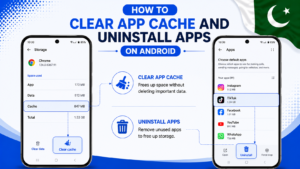
Clearing app cache is the fastest way to free up storage space on Android without deleting any of your personal files. Cache is just temporary data that apps store to load faster — but over time it builds up into hundreds of MBs of wasted space.
How to clear cache for a single app:
- Go to Settings on your phone
- Tap Apps or Application Manager
- Tap on the app you want to clear (e.g. Chrome, YouTube, Facebook)
- Tap Storage
- Tap Clear Cache
How to clear cache for ALL apps at once (Samsung):
- Go to Settings
- Tap Device Care or Battery and Device Care
- Tap Storage
- Tap Clean Now
This single step alone can free up 500MB to 2GB on phones that have not been cleaned in a while. And the best part — clearing cache does not delete your passwords, saved data, or any personal content inside the app.
Method 2 — Delete WhatsApp Media You Do Not Need
WhatsApp is the biggest storage killer on Pakistani phones. Most people are in 5 to 10 WhatsApp groups, and every meme, video, and voice note gets saved automatically. Here is how to clean it up.
Delete WhatsApp media from your phone gallery:
- Open your File Manager app
- Go to Internal Storage → WhatsApp → Media
- You will see folders — WhatsApp Images, WhatsApp Video, WhatsApp Audio, WhatsApp Documents
- Open each folder and delete files you do not need
Delete WhatsApp media directly from WhatsApp:
- Open WhatsApp
- Tap the three dots (⋮) → Settings
- Tap Storage and Data
- Tap Manage Storage
- You will see which chats and groups are taking the most space
- Select and delete large files directly from here
WhatsApp videos are usually the biggest problem. A single group that shares video clips daily can store several GBs on your phone within a month. Go through your video folder first — that is where you will recover the most space.
Pro Tip: After cleaning, go to WhatsApp Settings → Storage and Data → and turn off Auto-Download for videos. This stops videos from saving automatically in future.
Method 3 — Remove Unused Apps
Take a moment and look carefully at all the apps installed on your Android phone. How many of them have you not used even once in the last 30 days? Most people usually have around 10 to 15 apps sitting on their phones that they installed but never opened again.
All of these apps continue taking up storage space on your Android phone without you even noticing.
How to uninstall apps on Android:
- Go to Settings → Apps
- Scroll through the list and look for apps you do not use
- Tap the app name
- Tap Uninstall
- Confirm by tapping OK
You can also long-press an app icon on your home screen and select Uninstall directly. On Samsung phones, go to Settings → Apps → sort by Size to quickly see which apps are taking the most storage and decide what to remove.
Method 4 — Use Google Photos to Backup and Free Space
Google Photos is one of the smartest ways to free up storage space on Android while keeping all your memories safe. You upload your photos and videos to Google cloud storage, and then delete the local copies from your phone — freeing up potentially gigabytes of space.
How to use Google Photos to free storage:
- Download and open Google Photos from Play Store
- Sign in with your Google account
- Tap your Profile icon → Photos Settings
- Turn on Backup and wait for all photos to upload
- Once backup is complete, tap Free Up Space
- Google Photos will delete photos already backed up from your phone
Google gives you 15GB of free storage with every Google account. For most Pakistani users, this is more than enough to back up years of photos and videos.
Important: Make sure backup is complete before deleting local copies. You will see a green checkmark on backed-up photos. Do not delete anything until backup shows 100% complete.
Method 5 — Move Files to SD Card
If you have an Android phone that also supports an SD card, then you can move your photos, videos, and downloaded files to the SD card to free up your phone’s internal storage.
This method is especially useful for people using phones with 32GB internal storage because that amount of storage usually fills up very quickly.
How to move files to SD card:
- Open File Manager app
- Navigate to the file or folder you want to move
- Long press to select files
- Tap Move (not Copy)
- Navigate to SD Card
- Select destination folder and tap Move Here
Move app data to SD card (on supported phones):
- Go to Settings → Apps
- Tap the app you want to move
- Tap Storage
- Tap Change → select SD Card
Note that not all apps support moving to SD card. This option will be greyed out for apps that must stay on internal storage.
Method 6 — Clear Downloads Folder
Most people completely forget about the Downloads folder. Over months and years, this folder fills up with PDF files, APKs, images, and documents that you downloaded once and never touched again. Cleaning this folder is quick and painless.
How to clean Downloads folder on Android:
- Open File Manager app
- Tap Downloads folder
- Press and hold to select all files
- Review what is there — keep anything important
- Delete everything else
You can also open the Files by Google app — it automatically shows you large files and old downloads that are safe to delete. This app is free and available on Play Store. It is one of the best tools for managing storage on budget Android phones.
Method 7 — Use Android Built-In Storage Cleaner
Most Android phones today come with a built-in storage cleaner or phone optimizer. This tool automatically finds junk files, duplicate content, and unnecessary data and helps you remove it with one tap.
For Samsung phones:
- Go to Settings
- Tap Battery and Device Care
- Tap Storage
- Tap Clean Now
For Tecno, Infinix, and Itel phones:
- Open the Phone Manager or Cleaner app that came pre-installed
- Tap Clean Storage or Junk Files
- Let it scan and then tap Clean
For Xiaomi and Redmi phones:
- Open Security app
- Tap Cleaner
- Let it scan and delete junk files
These built-in cleaners are safe and reliable. You do not need to download any third-party cleaner app — most of those are bloatware that actually waste your storage instead of saving it.
Extra Tips to Keep Storage Free
Once you have cleaned your phone storage, here are some smart habits to keep it clean going forward:
- Turn off WhatsApp auto-download — Stop videos and images from saving automatically. Go to WhatsApp Settings → Storage and Data → turn off auto-download for all media on mobile data.
- Do a storage cleanup every month — Set a reminder to clean cache and delete old files once a month. 30 minutes of cleaning every month saves you from major storage headaches.
- Use streaming instead of downloading — Instead of downloading songs and videos, stream them on YouTube, Spotify, or other apps. This saves a lot of internal storage.
- Stop apps from auto-updating and wasting storage — App updates also take up space. Read our guide on how to turn off auto update on Android to stop unnecessary updates from filling your storage.
- Check your storage weekly — Go to Settings → Storage to see exactly how much space is used and what is using it. Catching storage issues early is much easier than fixing a completely full phone.
- Monitor your data and storage together — Heavy storage usage and heavy data usage usually go hand in hand. Check our guide on how to check remaining MBs in Pakistan to keep an eye on your data while managing storage.
Frequently Asked Questions
Will clearing cache delete my data or passwords?
No. Clearing cache only removes temporary files that apps create for faster loading. Your personal data, login details, saved passwords, and app content stay completely safe. You might need to reload some content the first time you open the app after clearing cache, but that is all.
How much storage should I always keep free on Android?
It is recommended to keep at least 10% to 15% of your total storage free at all times. On a 64GB phone, try to keep at least 6 to 10GB free. When storage drops below this, Android starts slowing down noticeably.
Is it safe to use storage cleaner apps from Play Store?
Most third-party cleaner apps from Play Store are not necessary and some are actually harmful. They run in the background constantly, waste battery, and show annoying ads. Stick to your phone’s built-in cleaner — it does the same job more safely.
Why does my phone storage keep filling up again so fast after cleaning?
The main reasons are WhatsApp auto-download and app cache building up again. Turn off WhatsApp media auto-download and make storage cleaning a monthly habit. These two steps alone will keep your phone storage under control.
Can I increase Android storage without an SD card?
Yes — use Google Photos to move photos and videos to cloud storage, use streaming apps instead of downloading media, and regularly clear cache and junk files. These steps effectively give you more usable storage without any hardware change.
What is the fastest single step to free up storage on Android right now?
Go to your WhatsApp Media folder in File Manager