In today’s world, if you want to set parental controls on your children’s Android phones, you are making a very smart and important decision. Modern smartphones give children easy access to YouTube, social media, games, and the entire internet — all while sitting at home with a small screen in their hands.
In this situation, if proper controls are not set, children may watch inappropriate content, download apps that are not suitable for their age, and spend hours playing games. But the good news is that Android already comes with powerful parental control features that are completely free and also very easy to set up.
In this complete guide, you will learn how to set parental controls on your child’s Android phone in just 5 simple steps. This includes restricting apps, setting screen time limits, filtering content available on the phone, and even tracking your child’s location. And the best part is that all of this can be done using Google’s official tools.
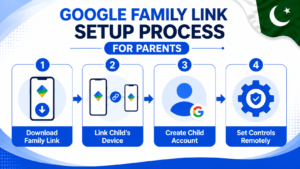
Step 1 — Install Google Family Link App
Google Family Link is the official and most reliable way to set parental controls on Android phone. It is completely free and made directly by Google, so it works smoothly with every Android phone without any compatibility issues.
How to set up Family Link:
- On your own phone, download Google Family Link from Play Store
- Open the app and tap Get Started
- Select “I’m a parent”
- Choose “Set up controls for my child”
- On your child’s phone, download Family Link app as well (or use the version already built into newer Android phones)
- Follow the on-screen steps to link both devices using your child’s Google account
Once linked, you will be able to manage your child’s phone remotely from your own device — without needing to physically hold their phone every time you want to make a change.
Note: If your child does not have a Google account yet, Family Link will help you create a special supervised account for them during setup.
Step 2 — Set Screen Time Limits
One of the biggest concerns for parents in Pakistan is kids spending too much time on their phones — especially on games and YouTube. Family Link lets you set a daily screen time limit, and the phone will automatically lock once that time is reached.
How to set screen time limits:
- Open Family Link app on your phone
- Select your child’s account
- Tap Controls
- Tap Daily Limit
- Set the number of hours allowed per day
- You can also set different limits for weekdays vs weekends
Set a bedtime schedule:
- In the same Controls section, tap Bedtime
- Set a start time and end time (e.g. 10 PM to 7 AM)
- During this period, the phone will automatically lock
This feature alone solves a problem that most Pakistani parents struggle with daily — kids staying up late on their phones instead of sleeping. Once the bedtime schedule is active, the phone locks itself, no arguments needed.
Step 3 — Block Inappropriate Apps and Content
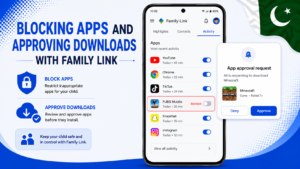
Family Link gives you full control over which apps your child can download and use. You can also block apps they already have installed if you feel they are not appropriate.
How to manage and block apps:
- Open Family Link
- Select your child’s account
- Tap Controls → App Activity
- You will see a list of all apps installed on your child’s phone
- Tap any app and select Block to disable it
Require approval for new app downloads:
- Go to Controls → Google Play Store Settings
- Tap Approve & Manage
- Turn ON “Require approval for installing apps”
Once this is enabled, whenever your child tries to download a new app, you will get a notification on your phone asking for approval. This way, nothing gets installed without you knowing about it first.
Step 4 — Filter Content on YouTube and Google Search
YouTube is one of the most used apps by kids, and it is important to filter what kind of content they can see. Google Search also has a SafeSearch feature that blocks explicit results.
Set up YouTube Kids or restricted mode:
- Install YouTube Kids app instead of regular YouTube for younger children
- For older kids using regular YouTube, open Family Link
- Tap your child’s account → Controls → Content Restrictions
- Tap YouTube and select an appropriate content level
Enable SafeSearch for Google Search:
- In Family Link, go to Controls → Content Restrictions
- Tap Google Search
- Turn ON SafeSearch
SafeSearch automatically filters explicit images, videos, and websites from search results. This is one of the most important settings to enable, since Google Search is the gateway to almost everything on the internet.
Step 5 — Track Your Child’s Location
Family Link also includes a location tracking feature, so you always know where your child’s phone is. This gives peace of mind, especially for parents whose kids travel to school or tuition alone.
How to enable location tracking:
- Open Family Link
- Select your child’s account
- Tap the Location tab at the bottom
- Make sure location sharing is turned ON
- You will now see your child’s real-time location on a map
You can also set up alerts so you get notified when your child’s phone battery is low, ensuring you know if their phone might die while they are out.
Extra Built-In Android Restrictions
Apart from Family Link, Android also has some built-in restriction options directly in phone settings that work without needing the app.
Set up a restricted profile (on some Android phones):
- Go to Settings → Users
- Tap Add User or Profile
- Select Restricted Profile
- Choose which apps and features the restricted profile can access
Restrict in-app purchases on Google Play Store:
- Open Google Play Store
- Tap your Profile icon → Settings
- Tap Authentication
- Tap Require authentication for purchases
- Select “For all purchases through Google Play on this device”
This last setting is extremely important. Many parents in Pakistan have faced surprise bank charges because their child made in-app purchases without realizing real money was being spent. Setting up authentication prevents this completely.
Tips for Pakistani Parents
- Talk to your child about phone safety — Parental controls work best alongside open conversation. Explain why certain restrictions are in place rather than just silently blocking things.
- Review app activity weekly — Check Family Link reports once a week to see what apps your child is using the most and for how long.
- Secure your own phone number too — If your child uses your phone occasionally, make sure your own number and accounts are protected. Check our guide on how to check your own mobile number in Pakistan if you ever need to verify your SIM details.
- Monitor data usage — Kids watching videos and playing games can use up mobile data quickly. Read our guide on how to check remaining MBs in Pakistan to keep track of data consumption.
- Update controls as your child grows — Parental control needs change as kids get older. Review and adjust settings every few months instead of setting them once and forgetting.
Frequently Asked Questions
Is Google Family Link free to use?
Yes, Google Family Link is completely free for both Android and iOS devices. There are no hidden charges or subscription fees for any of its parental control features.
What is the minimum age for Family Link supervision?
Family Link can supervise accounts for children under 13 years old in most regions. For teenagers above 13, Family Link can still be used, but with their awareness since they can request more independence from supervised settings.
Can my child remove or bypass parental controls?
It is very difficult for children to remove Family Link controls without knowing your parent account password. However, older tech-savvy teens might try factory reset methods. To prevent this, also set up a device PIN that only you know.
Does parental control software slow down the phone?
No. Google Family Link is lightweight and does not affect phone performance or battery life. It runs quietly in the background and only activates when checking permissions or restrictions.
Can I set different rules for different children?
Yes. Family Link allows you to manage multiple children from one parent account, with completely separate settings, screen time limits, and app restrictions for each child.
Will parental controls work if my child is using mobile data instead of WiFi?
Yes. Family Link controls work regardless of whether your child’s phone is connected to WiFi or mobile data, as long as the phone has an active internet connection to sync with your parent account.
Final Words
Setting parental controls on Android phone does not require any technical expertise — Google Family Link makes the entire process simple and free. Start with screen time limits and content filtering, then add location tracking and app approval as needed. These tools give you control while still allowing your child to safely enjoy their phone.
Remember, parental controls work best when combined with regular conversation about online safety. Technology can help, but staying involved in your child’s digital life matters most.
For more useful Android guides, keep visiting Buzmis — simple tech solutions for every Pakistani family.
For official setup help, visit the Google Family Link official website.