If you want to reduce mobile data usage on Android, you have come to the right place. In Pakistan, mobile data packages are becoming more expensive, and for many people, they run out much faster than expected. You activate a weekly or monthly package, and before you know it, most of your data is already gone.
The reason is that background app updates, auto-playing videos, social media apps, and many other services keep using your mobile data without you even noticing. The good thing is that with a few simple settings, you can reduce mobile data usage on Android and make your data package last much longer.
In this complete guide, you will learn exactly how to reduce mobile data usage on Android in 2026 using simple settings that every Pakistani user can apply right now.
- Why Mobile Data Finishes So Fast in Pakistan
- Tip 1 — Enable Data Saver Mode
- Tip 2 — Turn Off Auto Update on Play Store
- Tip 3 — Restrict Background Data for Apps
- Tip 4 — Turn Off Auto-Play Videos
- Tip 5 — Set a Data Usage Limit and Warning
- Tip 6 — Use Lite Versions of Heavy Apps
- Tip 7 — Monitor Which Apps Use Most Data
- Extra Tips to Save More Data
- Frequently Asked Questions
Why Mobile Data Finishes So Fast in Pakistan
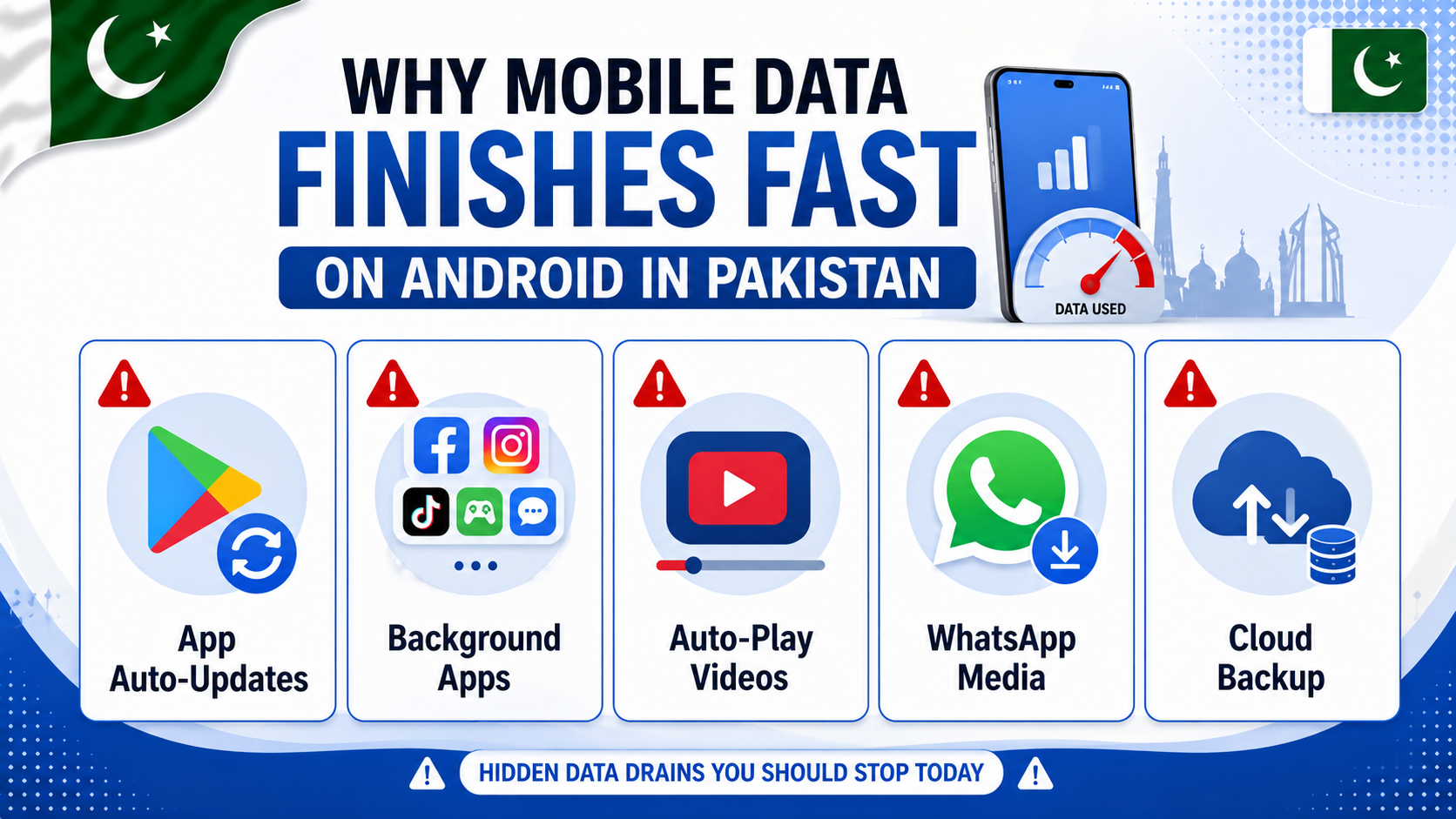
Before you try to reduce mobile data usage on Android, it is important to understand where your mobile data is actually being used. Most people think their data is only consumed while browsing the internet or watching videos, but that is only part of the story.
The good thing is that once you know which apps and features are using your data in the background, it becomes much easier to reduce mobile data usage on Android. Below are the biggest silent data wasters on Android phones.
- App auto-updates — Play Store updates apps in the background using your mobile data without asking
- Background app refresh — Facebook, Instagram, TikTok, and news apps keep downloading new content even when you are not using them
- Auto-play videos — Facebook, YouTube, and Instagram auto-play videos as you scroll — using massive amounts of data
- WhatsApp media auto-download — Photos, videos, and documents from groups download automatically
- Cloud backup — Google Photos, Google Drive, and WhatsApp backup can run on mobile data if not restricted to WiFi only
Now let us fix all of these and reduce mobile data usage on Android properly.
Tip 1 — Enable Data Saver Mode on Android
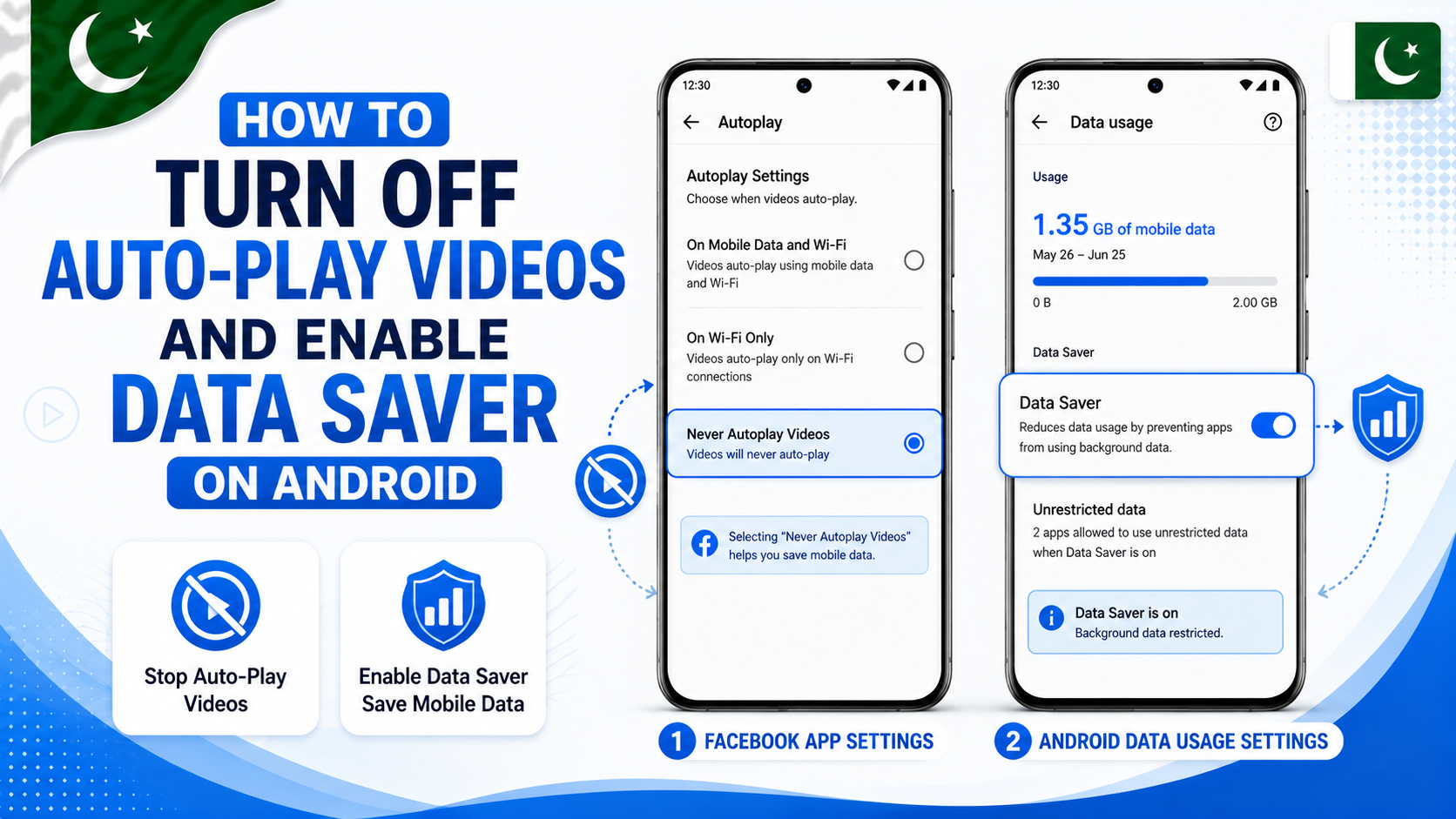
If you want to reduce mobile data usage on Android, turning on Data Saver is one of the best things you can do. With just a single toggle, it limits background internet activity for almost all apps, helping you save a significant amount of mobile data.
The good thing is that once Data Saver is enabled, many apps stop using your mobile data in the background automatically. This makes it much easier to reduce mobile data usage on Android without changing lots of different settings.
How to enable Data Saver on Android:
- Go to Settings on your phone
- Tap Connections or Network & Internet
- Tap Data Usage
- Tap Data Saver
- Toggle it ON
Once Data Saver is ON, apps can only use internet when you are actively using them. No more silent background data consumption.
Important thing you should know is that when Data Saver is turned on, some apps like WhatsApp may not receive messages instantly. But there is no need to worry because you can easily allow important apps to use mobile data without any restrictions.
The good thing is that you can simply go to Data Saver → Unrestricted Data and turn on WhatsApp along with any other apps that you use the most. This way, you can still reduce mobile data usage on Android while making sure your important apps continue working normally.
Tip 2 — Turn Off Auto Update on Play Store
App updates are one of the biggest data wasters on Android. A single app update can be 100MB to 500MB — and when multiple apps update at the same time, your package is gone in minutes.
How to stop auto updates on Play Store:
- Open Google Play Store
- Tap your Profile icon → Settings
- Tap Network Preferences
- Tap Auto-update apps
- Select “Over Wi-Fi only” or “Don’t auto-update apps”
This single change can save hundreds of MBs every week. Update your apps manually when you are connected to WiFi instead.
For a complete guide on stopping auto updates, read our article on how to turn off auto update on Android — it covers all methods in detail.
Tip 3 — Restrict Background Data for Specific Apps
Some apps are heavy background data users even when you are not using them. You can restrict background data for individual apps without affecting how they work when you open them.
How to restrict background data for an app:
- Go to Settings → Apps
- Tap the app you want to restrict (e.g. Facebook, Instagram)
- Tap Mobile Data or Data Usage
- Toggle OFF Background Data
Do this for these heavy background apps first — Facebook, Instagram, Twitter/X, TikTok, Snapchat, and any news apps. These apps refresh their feeds constantly in the background and waste significant data daily.
Tip 4 — Turn Off Auto-Play Videos on Social Media
Auto-playing videos are one of the biggest reasons people need to reduce mobile data usage on Android. Every time you scroll through apps like Facebook or Instagram, videos start playing automatically, using your mobile data even if you do not stop to watch them.
The good thing is that you can easily turn off auto-play videos in the app settings. This simple change can help you reduce mobile data usage on Android and make your mobile data package last much longer.
Turn off auto-play on Facebook:
- Open Facebook app
- Tap three lines (☰) → Settings & Privacy → Settings
- Scroll to Media
- Tap Autoplay
- Select “Never Autoplay Videos”
Turn off auto-play on YouTube:
- Open YouTube app
- Tap your Profile icon → Settings
- Tap Autoplay
- Toggle OFF Autoplay next video
Turn off auto-play on Instagram:
- Open Instagram → Profile → Settings
- Tap Account → Cellular Data Use
- Toggle ON Use Less Data
Turning off auto-play on just these three apps alone can save 200MB to 500MB of data every single day depending on how much you scroll.
Tip 5 — Set a Mobile Data Usage Limit and Warning
Android has a built-in feature that lets you set a data usage limit. When your data reaches the limit, Android automatically turns off mobile data — preventing you from accidentally going over your package.
How to set data limit on Android:
- Go to Settings → Connections → Data Usage
- Tap Billing Cycle and Data Warning
- Set your Billing Cycle Date (match it to when your package activates)
- Toggle ON Set Data Warning and enter your package size (e.g. 10GB)
- Toggle ON Set Data Limit and enter the same amount
Now Android will warn you when you are reaching your limit — and cut off data automatically when you hit it. No more surprise charges or package finishing before the month ends.
Always check your remaining MBs regularly too. Read our guide on how to check remaining MBs in Pakistan on all networks to always know exactly how much data you have left on Jazz, Zong, Telenor, or Ufone.
Tip 6 — Use Lite Versions of Heavy Apps
Many popular apps have official “Lite” versions that use significantly less data, storage, and battery. These are specially designed for users with limited data plans — which describes most mobile users in Pakistan.
Lite apps available on Play Store:
- Facebook Lite — Uses up to 5x less data than regular Facebook
- Messenger Lite — Lightweight messaging with minimal data use
- YouTube Go — Download videos for offline watching, preview before playing
- Twitter Lite — Data-saving version of Twitter/X
- Opera Mini — Browser that compresses web pages to use less data
Switching from regular Facebook to Facebook Lite alone can cut your Facebook data usage by 70% or more. If you are on a limited package, lite apps are one of the smartest switches you can make.
Tip 7 — Monitor Which Apps Use the Most Data
Before you can reduce mobile data usage on Android effectively, you need to know exactly which apps are the biggest data consumers on your specific phone. Android tracks this automatically.
How to check data usage per app:
- Go to Settings → Connections
- Tap Data Usage
- Tap Mobile Data Usage
- You will see a list of all apps ranked by data consumed this month
- Tap any app to see breakdown of foreground vs background usage
Check this list once a week. You will quickly spot which apps are secretly consuming the most data in the background. Once you know the culprits, restrict their background data using Tip 3 above.
Extra Tips to Save More Data in Pakistan
- Turn off WhatsApp auto-download — Go to WhatsApp → Settings → Storage and Data → turn off auto-download for Photos, Audio, and Videos on mobile data. This alone saves massive amounts of data in active group chats.
- Use WiFi for heavy tasks — Always download apps, update software, watch YouTube in HD, and do Google Drive backups only on WiFi. Never do these on mobile data.
- Enable Chrome Data Saver — Open Chrome → three dots → Settings → Lite Mode → turn ON. Chrome will compress web pages before loading them, using less data.
- Download music and videos for offline use — Spotify, YouTube Premium, and Netflix all allow downloading content on WiFi for offline playback. Download your favorites at home and watch offline instead of streaming on mobile data.
- Turn off Google Maps offline sync — Google Maps downloads map data in the background. Go to Google Maps → Profile → Settings → turn off WiFi-only for offline areas if it is consuming data.
Frequently Asked Questions
Which app uses the most mobile data on Android?
Apps like YouTube, Facebook, Instagram, and TikTok are among the biggest reasons people need to reduce mobile data usage on Android. These apps use a large amount of mobile data because videos keep streaming while you browse your feed, even if you only watch them for a few seconds.
The good thing is that you can switch to the Lite versions of these apps whenever they are available and also turn off auto-play videos. These two simple changes can help you reduce mobile data usage on Android and make your mobile data package last much longer.
Does Data Saver mode affect call quality on Android?
No. Data Saver mode does not affect regular phone calls at all since those use the cellular voice network, not mobile data. However it may slightly affect WhatsApp calls quality since those run over internet. Whitelist WhatsApp in Data Saver settings to avoid this.
How much data does WhatsApp use per day?
WhatsApp text messages use very little data — about 1KB per message. But WhatsApp voice calls use about 1MB per minute, video calls use 5MB per minute, and auto-downloading media in groups can use hundreds of MBs per day. Turning off auto-download is the most effective fix.
Can I reduce mobile data usage on Android without losing notifications?
Yes. Enable Data Saver mode and then whitelist important apps like WhatsApp and Gmail in the Unrestricted Data section. These apps will continue receiving notifications normally while all other apps are restricted from background data.
Does using a VPN increase data usage on Android?
Yes. VPN apps add a small overhead to your data usage — usually 5% to 15% extra. If you are on a limited data package in Pakistan, avoid using VPN apps unless absolutely necessary. Only use VPN for specific tasks like accessing restricted content.
Final Words
Now you know exactly how to reduce mobile data usage on Android in 2026. Start with enabling Data Saver mode and stopping auto-updates on Play Store — these two steps alone will make a dramatic difference immediately.
Then turn off auto-play videos, restrict background data for heavy apps, and switch to lite versions where possible. With all these settings in place, your mobile data package will last significantly longer every month.
For more useful Android tips keep visiting Buzmis — simple tech solutions for everyone in Pakistan.
For official Android data saving tips visit the Google Android Data Saver official guide.